
Editing the layout of a Studio page
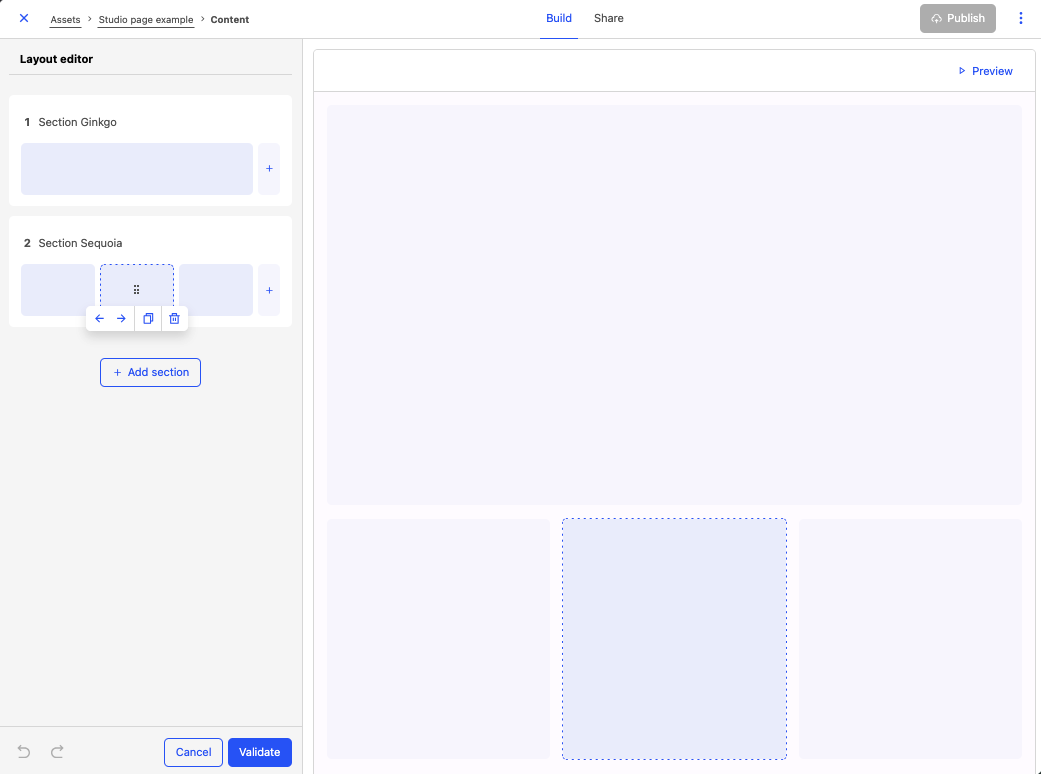
In Studio, the page layout editor allows you to configure how the page's content is displayed.
A page's structure consists of sections and blocks:
A page can contain up to 40 sections.
Each section can contain up to four blocks.
All blocks of a section automatically have an equal width. For example, if a section contains one block, it will be 100% wide. If a section contains two blocks, each block will be 50% wide, etc.
Creating a layout and adding sections
The layout editor can be accessed from the main page, in the sidebar on the left.
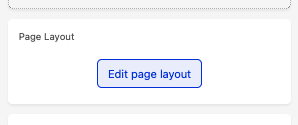
If you just created the page and didn't create any block yet, you will be instead be invited to create your first section.
Adding sections
Using sections, you can define the page structure. Once you added a section, you can add blocks inside this section.
Click Add section at the bottom of the section list.
Select the number of blocks you want to have inside the section.
Click Save.
The added section appears at the end of the section list. It also appears in the preview pane.
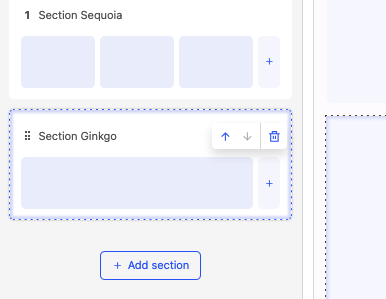
If you change your mind, you can add or delete blocks from this section afterward. If you delete the last block of a section, both block and section will disappear.
Adding blocks
A block allows you to add content to a section.
From the left side pane, open the Arrange your blocks menu.
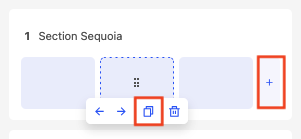
Click the + on the right side of the section in which you wish to add a block. If the section already has four blocks, it cannot host more and the + is absent. You can also duplicate an existing block by rolling over it and clicking on the copy icon.
Click Validate.
Rearranging elements
You can rearrange blocks and sections by dragging them and dropping into the desired spot of the left side pane. Neither sections nor blocks can be moved outside the left side pane.
Sections have a dedicated handle on their top left side. Drag the section while clicking on this handle to move the whole section. Release the handle to drop the section.
Blocks do not have handles, you can click anywhere in them to drag them into another spot. You can move a block to another section, as long as the target section is not at full capacity (i.e four blocks).