Adding preview images to your assets
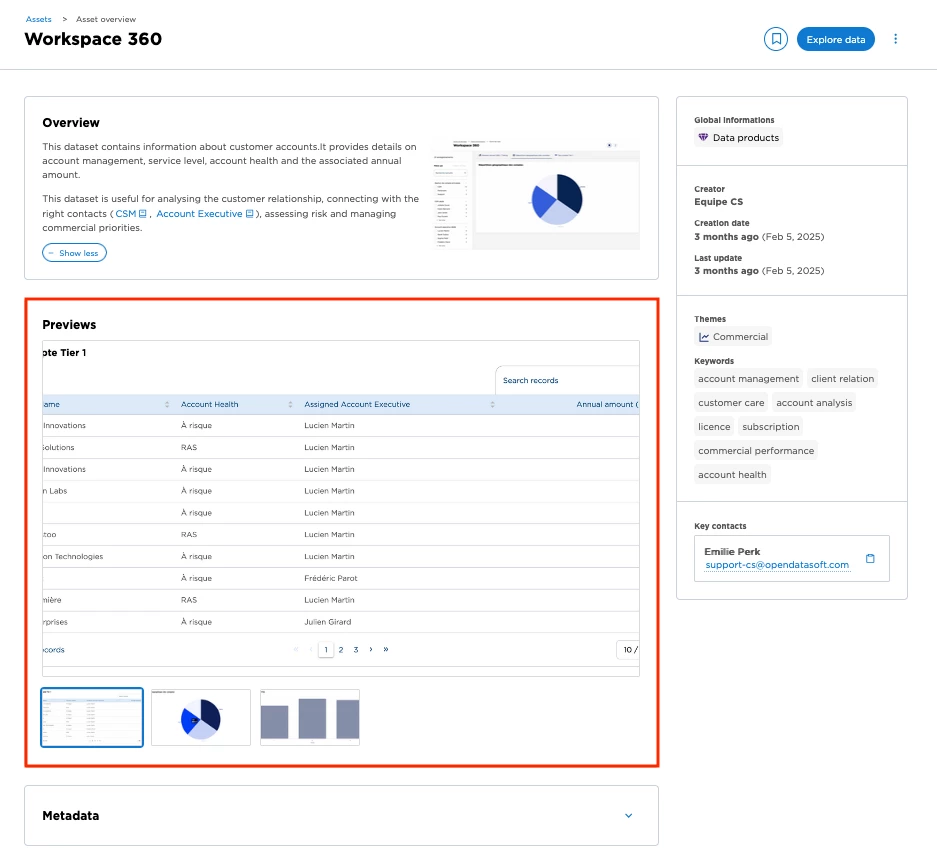
One way to flesh out your assets is previews of what’s in them or the kinds of things that can be done with their data.
By default, previews are visible just after the description in the overview, but can also be positioned as the very first element in your asset's presentation.
You can add up to five preview images.
Adding images on the Previews tab
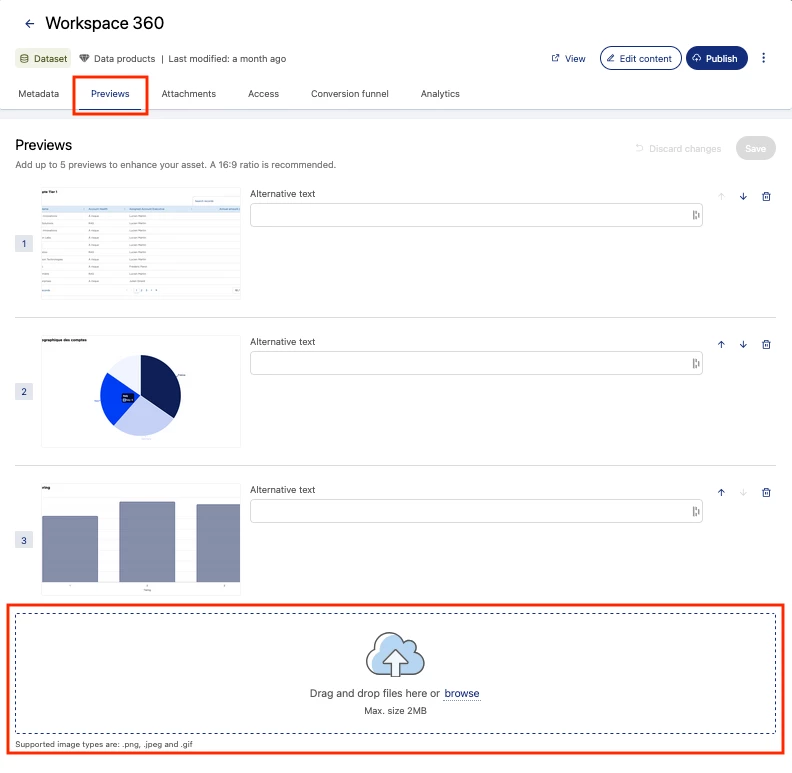
The Previews tab is found in your Asset manager interface, alongside others such as the Metadata and conversion funnel tabs.
You can drag and drop or browse to upload the files you want to use. You’re allowed five total previews of 2 MB maximum per preview. The accepted file formats are .png, .jpeg and .gif. Note that you can use the up- and down-arrows to the right of each image to change their order.
Fill out the alternative text field, which serves not only as the fallback if the image ever fails to load, but provides content for screen readers. See the WCAG guidelines regarding best practices.
Having previews can greatly improve your asset’s conversion potential. Keep in mind that the preview image format is horizontal (16:19), so you may wish to experiment a little at first to see what looks best.