
Tableau harvester
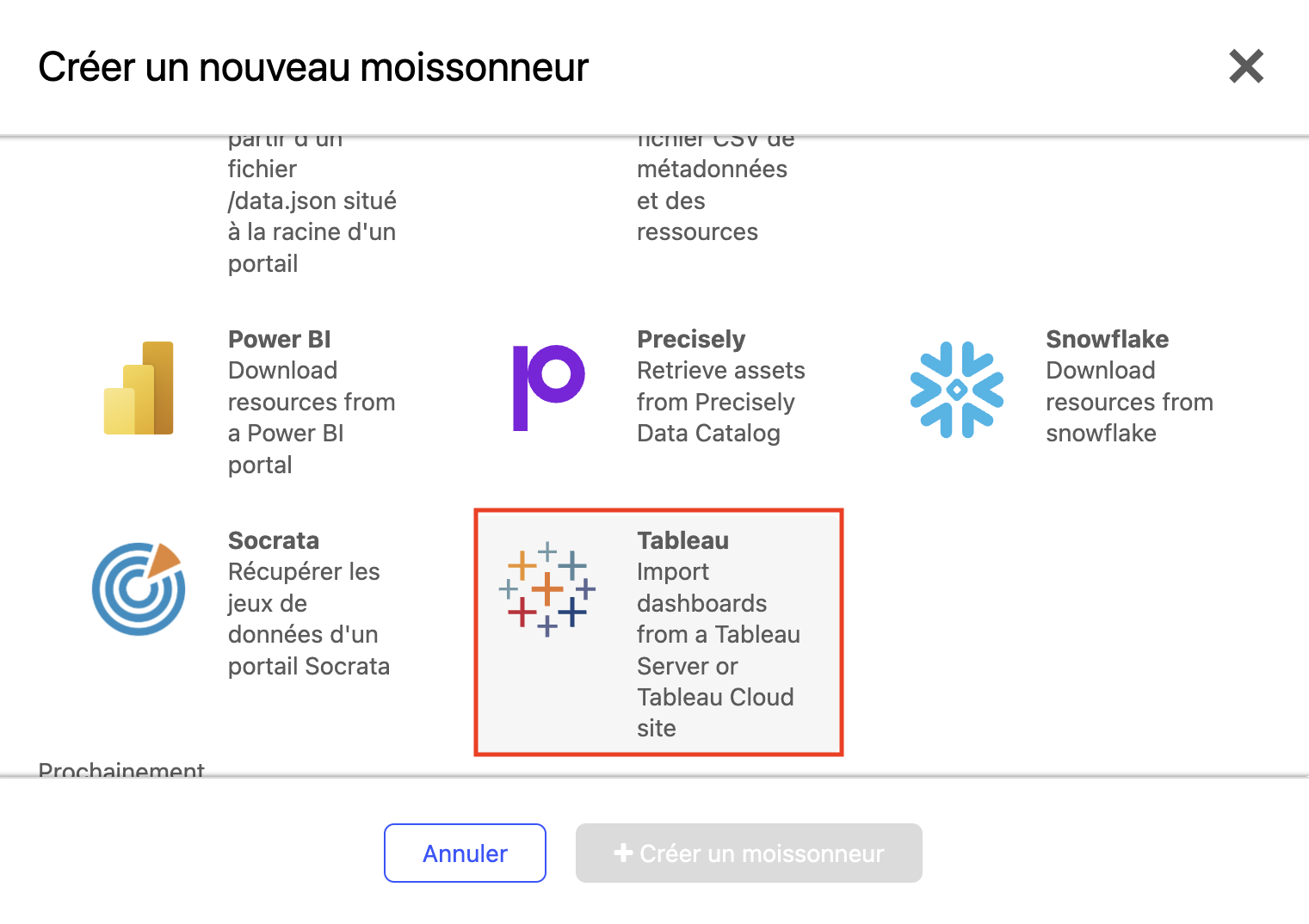
The Tableau harvester imports dashboards from a Tableau Server or Tableau Cloud site into your Huwise marketplace.
Once imported, dashboards can be explored directly in the portal — with the same live, embedded experience as Power BI dashboards — without redirecting users to Tableau.
You need a Tableau Personal Access Token (PAT) to connect your Tableau environment. PATs are the authentication method Tableau recommends for machine-to-machine integrations, in place of a username and password.
How to configure the harvester
To create and configure your Tableau harvester, in your back office go to Catalog > Harvesters. Click on the Add harvester button and select Tableau.
Provide a name for your harvester, and click on Create harvester.
Configure the connection
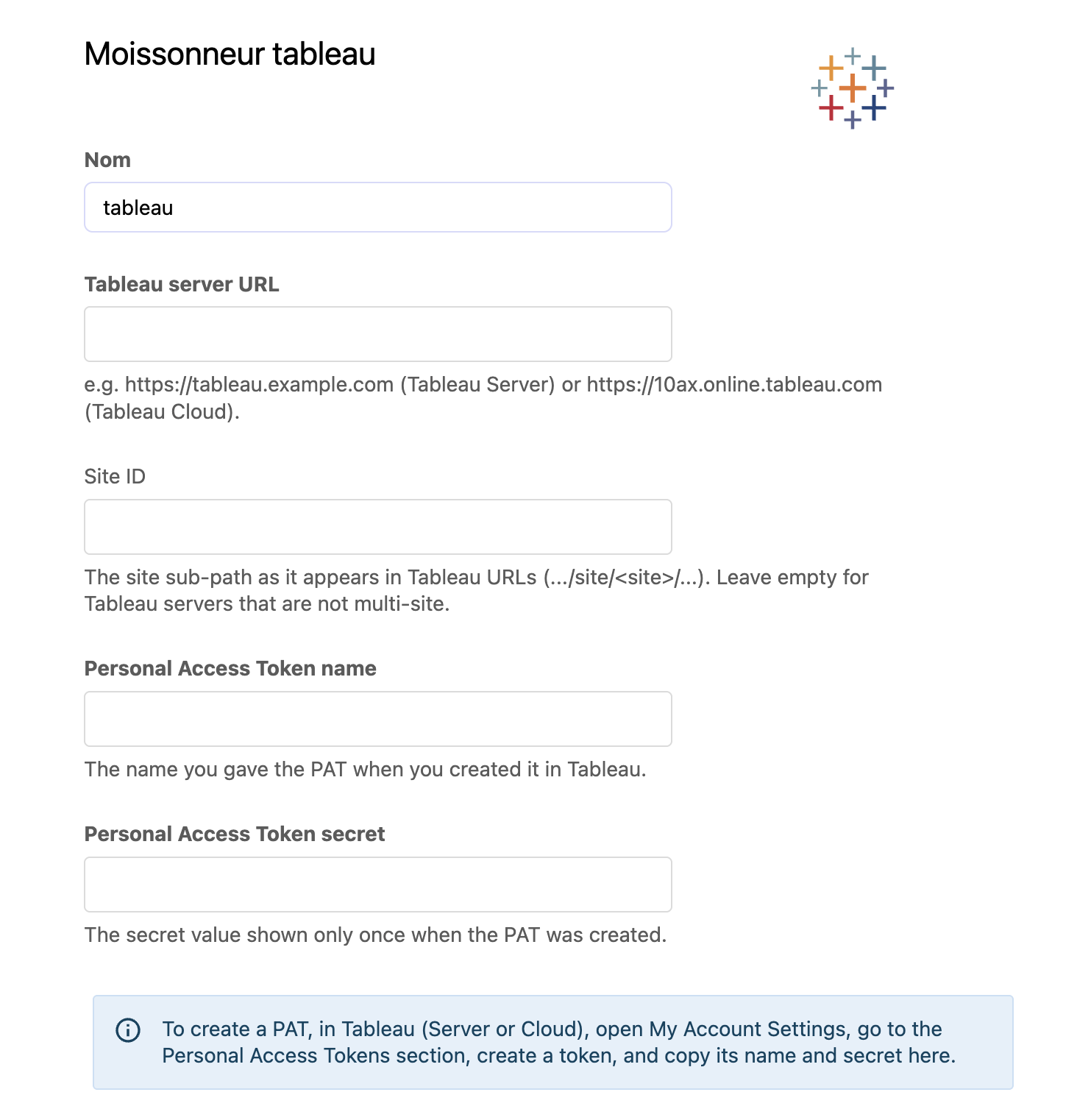
Fill in the following fields to connect to your Tableau site:
Field | Description |
Tableau server URL | e.g. https://tableau.example.com (Tableau Server) or https://10ax.online.tableau.com (Tableau Cloud) |
Site ID | The site sub-path as it appears in Tableau URLs (.../site/<site>/...). Leave empty for Tableau servers that are not multi-site |
Personal Access Token name | The name you gave the PAT when you created it in Tableau |
Personal Access Token secret | The secret value shown only once when the PAT was created |
To create a PAT, in Tableau (Server or Cloud), open My Account Settings, go to the "Personal Access Tokens" section, create a token, and copy its name and secret here.
Filter which dashboards to import
Once connected, the harvester reads your Tableau site's projects. Two optional filters narrow down what gets imported — leave both empty to import every dashboard on the site:
Projects — only import dashboards from the selected projects.
Workbooks — only import dashboards belonging to the selected workbooks. This filter only appears once at least one project is selected, and only offers the workbooks that belong to your selected projects.
Selecting a project does not include its sub-projects. If you want dashboards from a sub-project, select that sub-project separately.
Mapping the metadata
By default, some Tableau properties are pre-mapped to Huwise metadata.
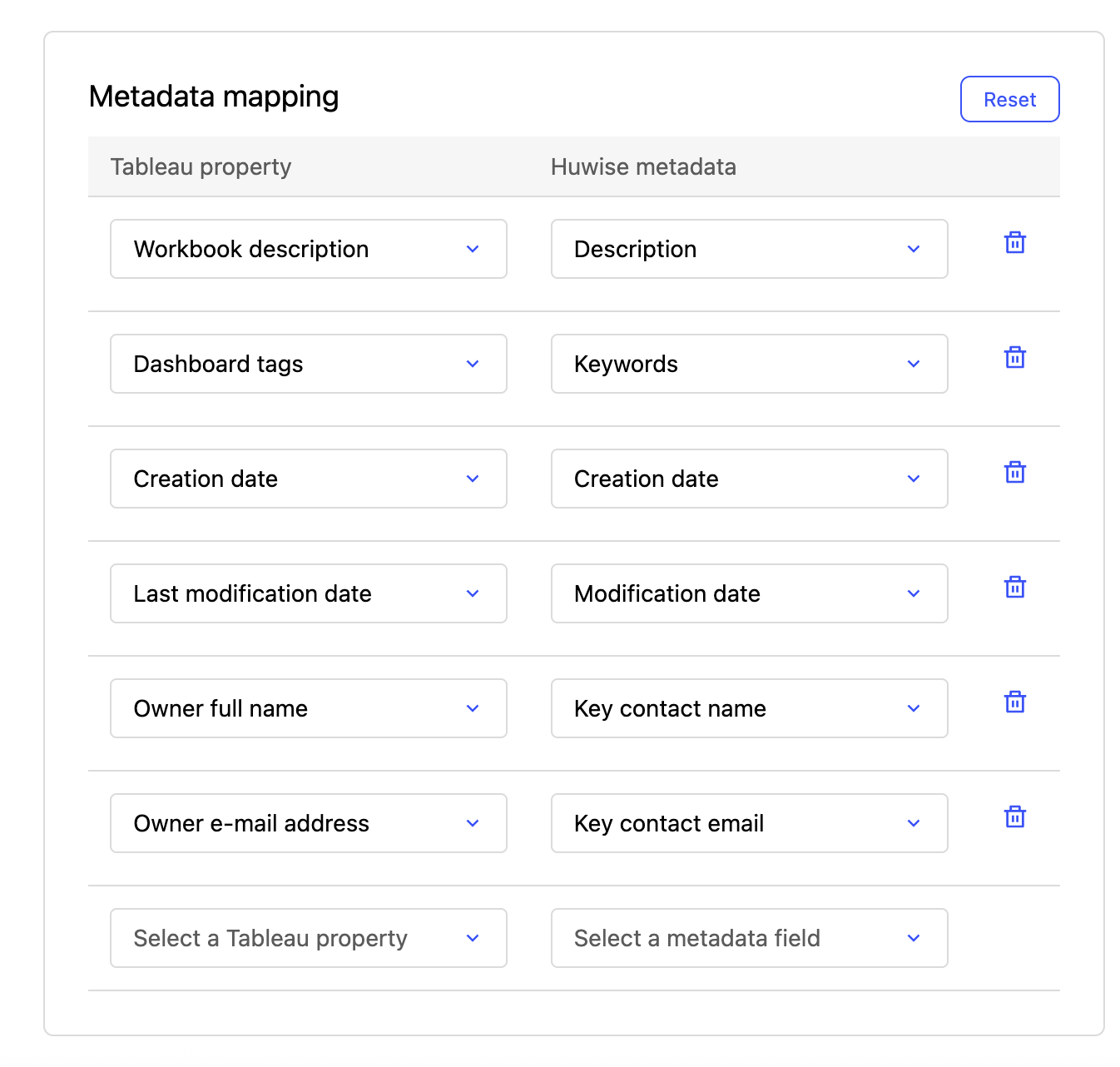
The table below lists the Tableau properties that are mapped, and shows whether you can change each mapping. The technical IDs are provided for those configuring the harvester through the Automation API.
The first three fields always come from Tableau. To change one of them, update the dashboard, view, or workbook in Tableau itself. The category is always set to "Visualizations".
The rest can be edited in the interface, and you can map any of the other Tableau properties listed below to any compatible metadata field on an active template. To add a mapping, click on "Select a Tableau property" and "Select a metadata field", and they will be added to the bottom of the list.
If you want to undo your changes, click Reset to return to the default mappings with no custom mappings.
Tableau property | Tableau property in the API | Huwise metadata | Huwise field ID in the API | Mapping can be changed |
Dashboard name | dashboard.name | Title | asset.title | No |
Dashboard link | dashboard.contentUrl, combined with your Tableau server and site address | Content link | asset.content_link | No |
The dashboard's preview image | Downloaded separately from Tableau | Thumbnail | asset.thumbnail | No |
None: Huwise always sets this value itself | None | Category, set to "Visualizations" | asset.category | No |
Workbook description | workbook.description | Description | asset.description | Yes |
Dashboard tags | dashboard.tags | Keywords | asset.keywords | Yes |
Creation date | dashboard.createdAt | Creation date | asset.created_at | Yes |
Last modification date | dashboard.updatedAt | Modification date | asset.updated_at | Yes |
Owner full name | dashboard.owner.fullName | Key contact name | asset.contact_name | Yes |
Owner e-mail address | dashboard.owner.email | Key contact email | asset.contact_email | Yes |
Dashboard name | dashboard.name | Any compatible field | The ID of the field you choose | Yes |
Dashboard link | dashboard.contentUrl | Any compatible field | The ID of the field you choose | Yes |
Project name | project.name | Any compatible field | The ID of the field you choose | Yes |
Workbook name | workbook.name | Any compatible field | The ID of the field you choose | Yes |
Owner username | dashboard.owner.name | Any compatible field | The ID of the field you choose | Yes |
Workbook tags | workbook.tags | Any compatible field | The ID of the field you choose | Yes |
Total view count | dashboard.total_views | Any compatible field | The ID of the field you choose | Yes |
Data sources: a table listing the workbook's data sources (name, type, last update, certification) | datasources | A "Long text with HTML" field | The ID of the field you choose | Yes |
What gets imported
The harvester imports one Huwise asset per Tableau Dashboard.
Note that Tableau's workbooks, sheets, stories, and data sources are not imported as separate assets.
Viewing dashboards in the portal
From the asset page, the main Show dashboard button opens the dashboard embedded directly in the page; there's no redirect and no new tab. If the dashboard requires you to sign in to Tableau, you're prompted to authenticate directly within the embedded view.
Note that in that case, you authenticate directly into Tableau using your Tableau credentials. If your Tableau permissions don't allow you to see a dashboard's content, you won't be able to see it in Huwise either — even if you can see the Show dashboard button. That button's visibility is controlled by your access in Huwise; what you can actually see once you click it is controlled by Tableau.
If a dashboard can't be loaded (for example, if the Tableau server has changed), you'll see a message with a link to open it directly in Tableau instead.
Limitations
As listed above, only dashboards are imported. Workbooks, sheets, stories, or data sources are not imported.
Tableau has no way to attach governance metadata, like certification or sensitivity labels, to a dashboard. Its Data Management add-on offers this for data sources, but not dashboards. The only free-form labeling Tableau offers for dashboards, on any plan, is tags.
Usage statistics are limited to total view count; Tableau's API does not expose a unique-visitor count.