
Sharing, reusing, communicating
Engaging users
User feedback on datasets
Users can be allowed to provide feedbacks on datasets.
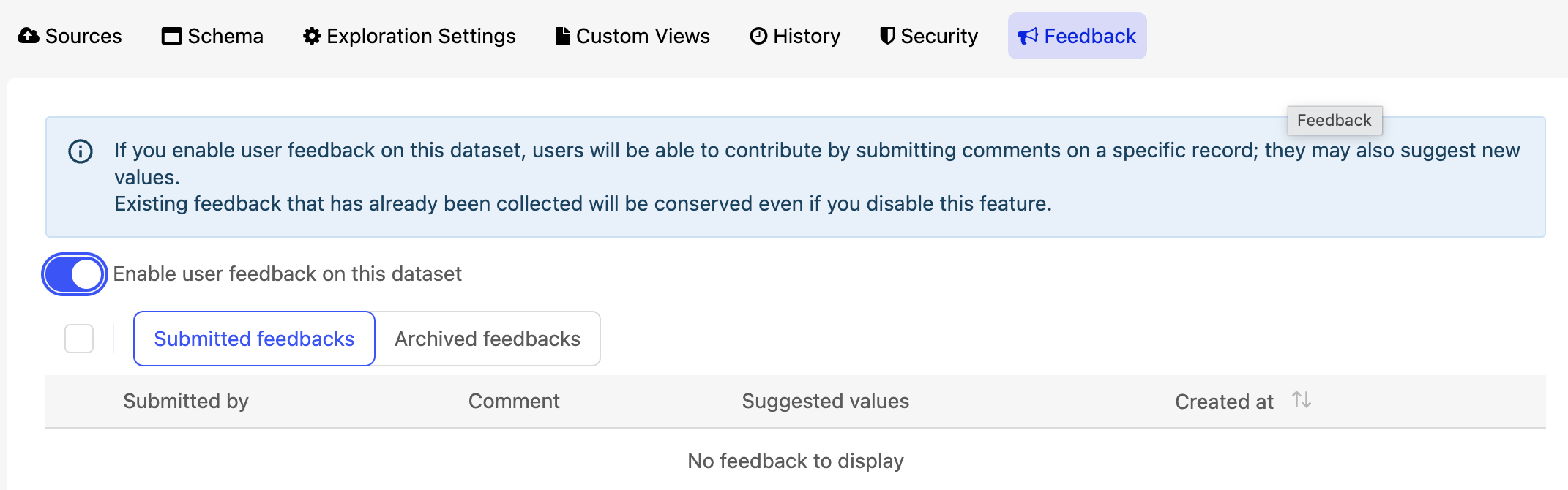
Once the option is active and the dataset is published again, your users will be able to send feedback on your dataset, either for a specific record or to suggest a new record, by clicking on the little chat bubble in the table view.
Doing so will open a form where the user can write a message and optionally suggest new values.
As the publisher of the dataset, you can access the list of all the feedback sent by your users. This is available in the "Feedback" tab of the back-office dataset page. From there, for each feedback sent, you can see the message, the suggested values, and you can archive it once you consider it handled.
This is not a crowdsourcing feature; the suggestions are not automatically applied or added to the dataset. It is up to the dataset's publisher to make sure the relevant feedback is applied to the source.
In order to see this tab in the back-office, you need to have "Publish own datasets"
Encouraging showcases
One of the main goals of a data marketplace is to have your data reused, thus producing new analyses or new services. Listing these showcases on the related datasets' pages will help promote both the showcase itself as well as your data.
You can access the configuration for showcases in the back office menu > Portal > Showcases settings.
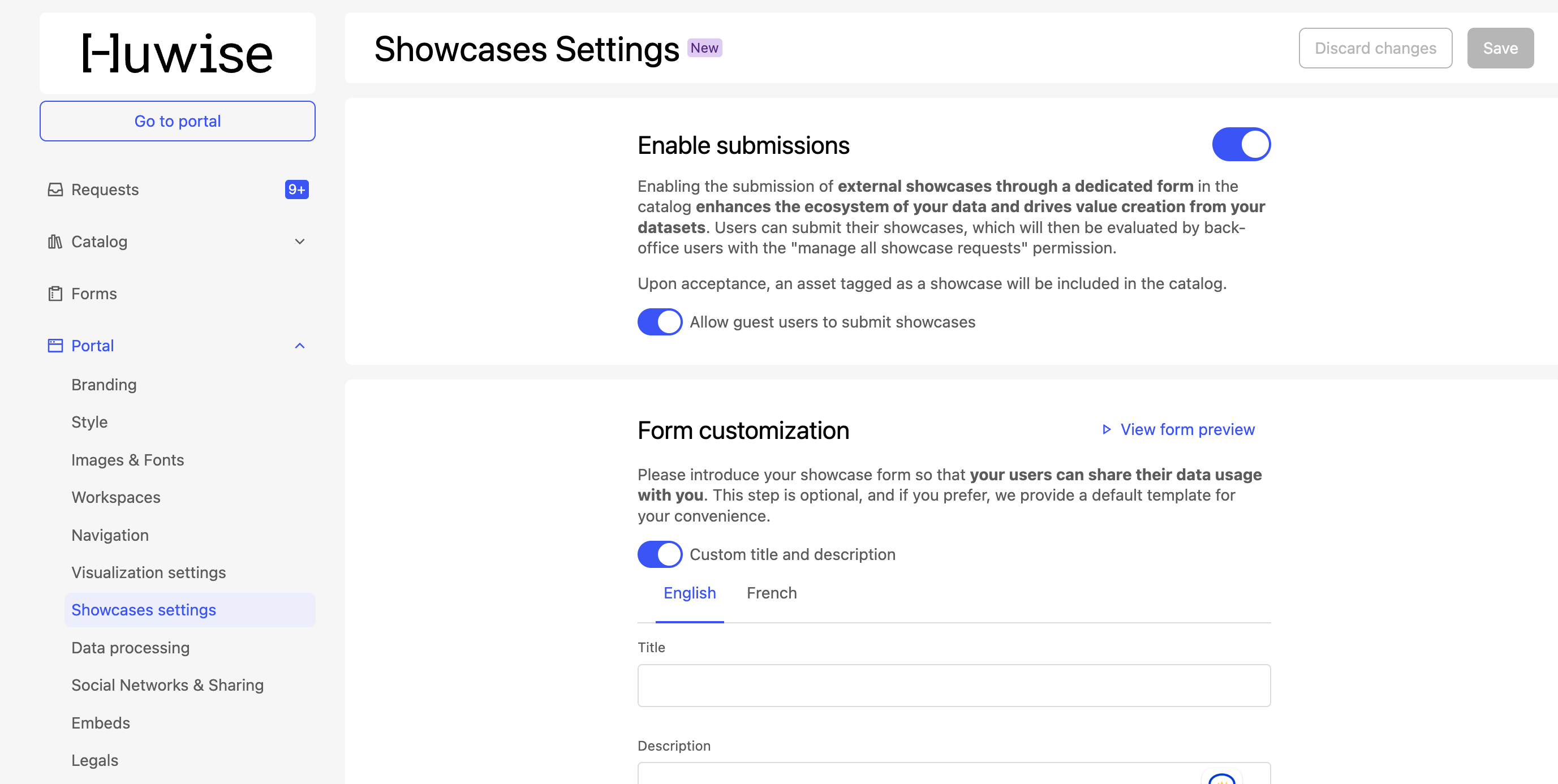
Enabling the showcase feature on your portal will display a new "Related assets" section at the bottom of the dataset page.
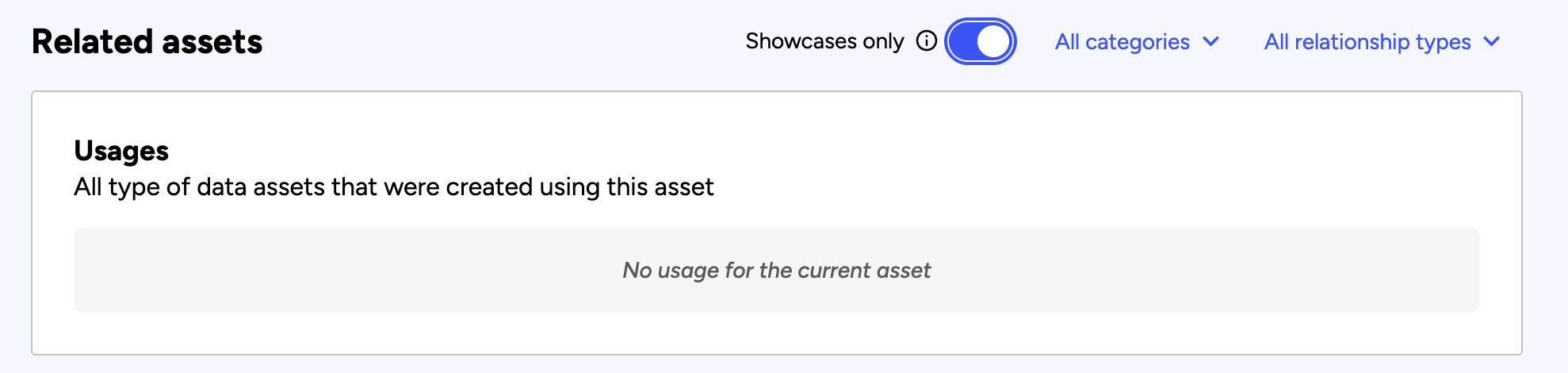
Additionally, this section will provide a form through which users can submit their showcases and will list all approved showcases.

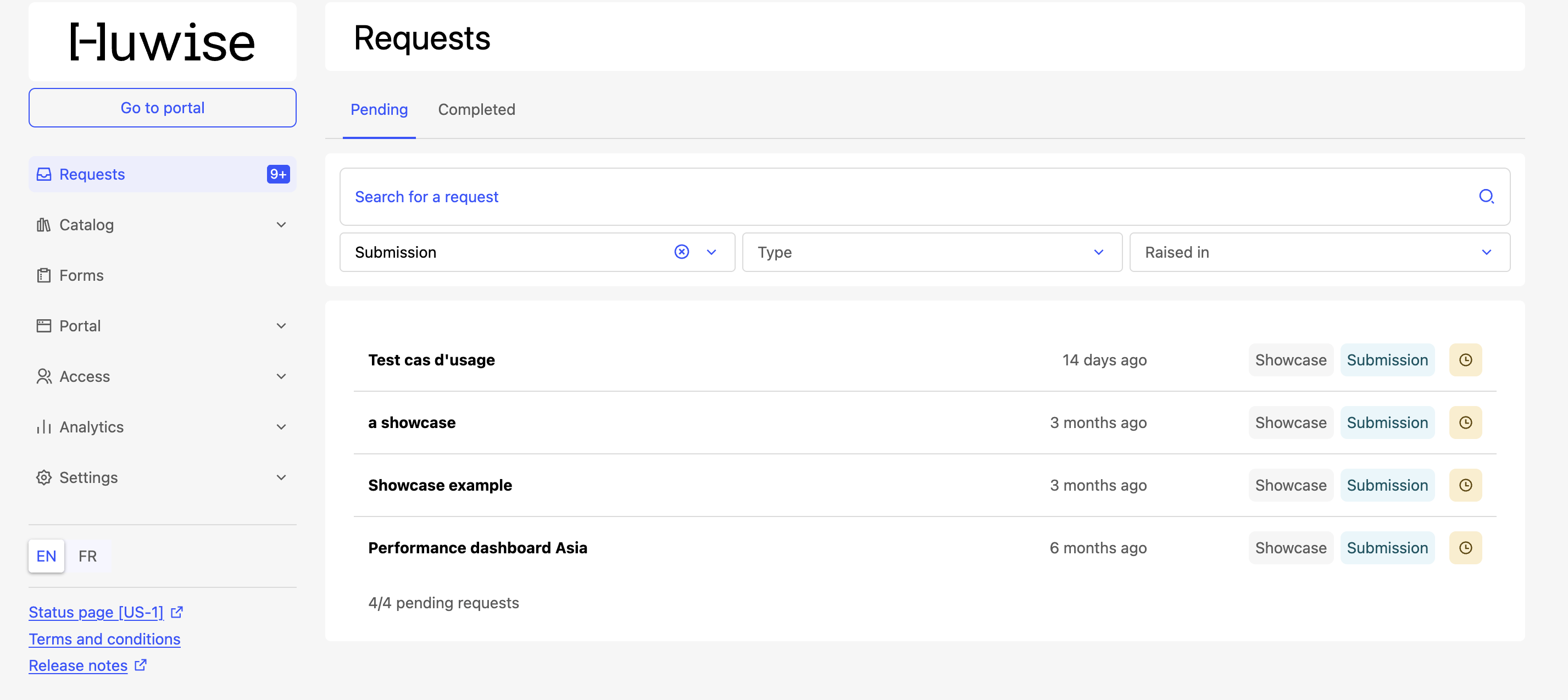
Note that in order to be displayed on a dataset's page, new showcases must be reviewed and approved by an administrator within the Request tab in the menu of your back office.
It is advised to warn the showcases owners in advance of any change that may impact any of their showcase, such as a change in the schema (renaming an existing field, removing a field) that may cause issues with existing showcases or an update of the data itself if it is not updated very frequently.
Notifications
By default, for every showcase submission, a notification is sent to that workspace's administrators.
If you wish to add additional recipients, you can enter their email addresses under "New reuses notifications recipients."
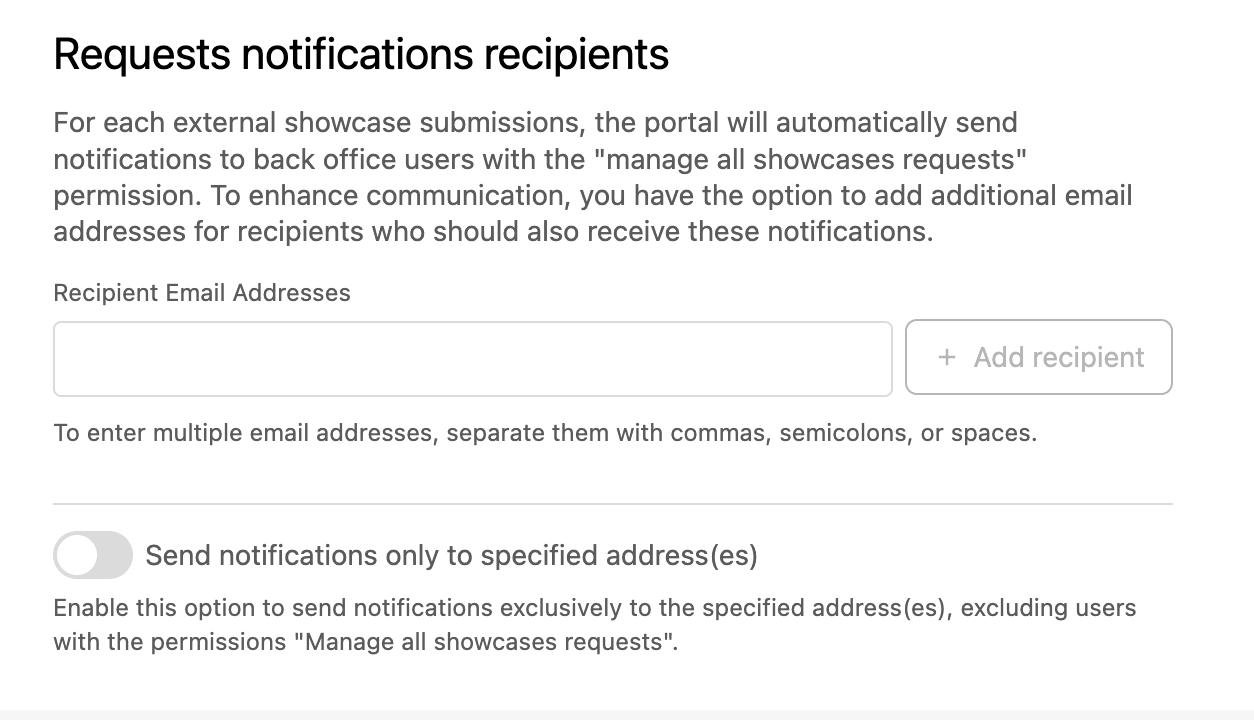
If you want notifications sent only to a specific email address or addresses, turn on "Send notifications only to specified address(es)."For example, you may wish notifications to be sent to only some of the workspace's administrators. In that case, turn on this option and list the email addresses of the administrators who should receive notification.
Contact form recipients
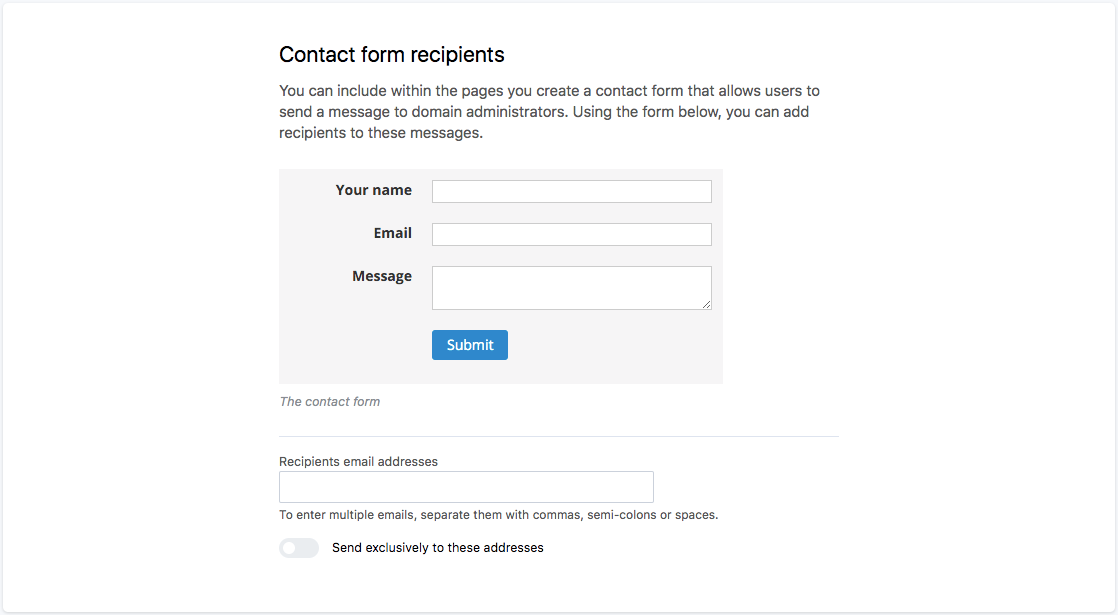
Within the pages you create, you can include a contact form that allows users to send a message to domain administrators. You can add recipients to these messages in the Social networks & sharing section from the Configure menu.
Saved assets
Users on your portal can save to any asset they can access by clicking on "Bookmark" button.
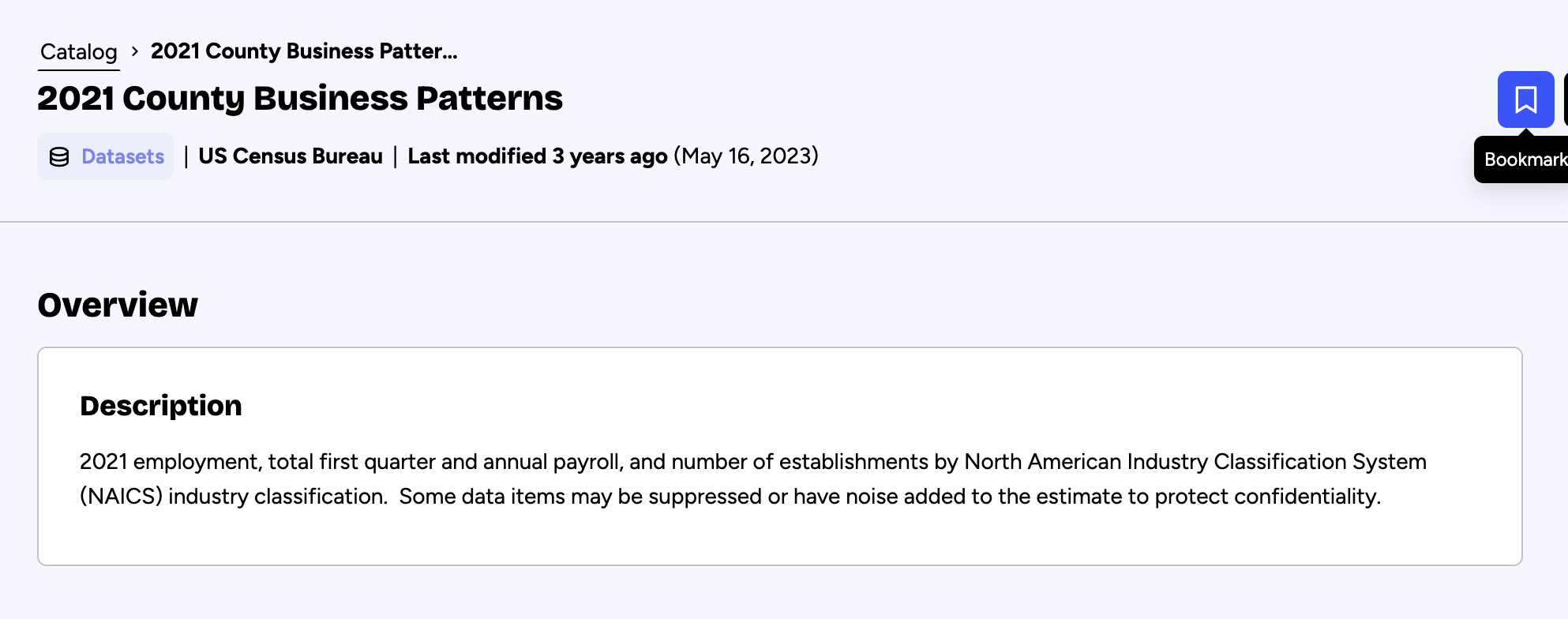
The button is only available to users who are logged on the portal using an account. If you want to use this feature on an open data portal, for example, you may want to allow users to sign up on your portal.
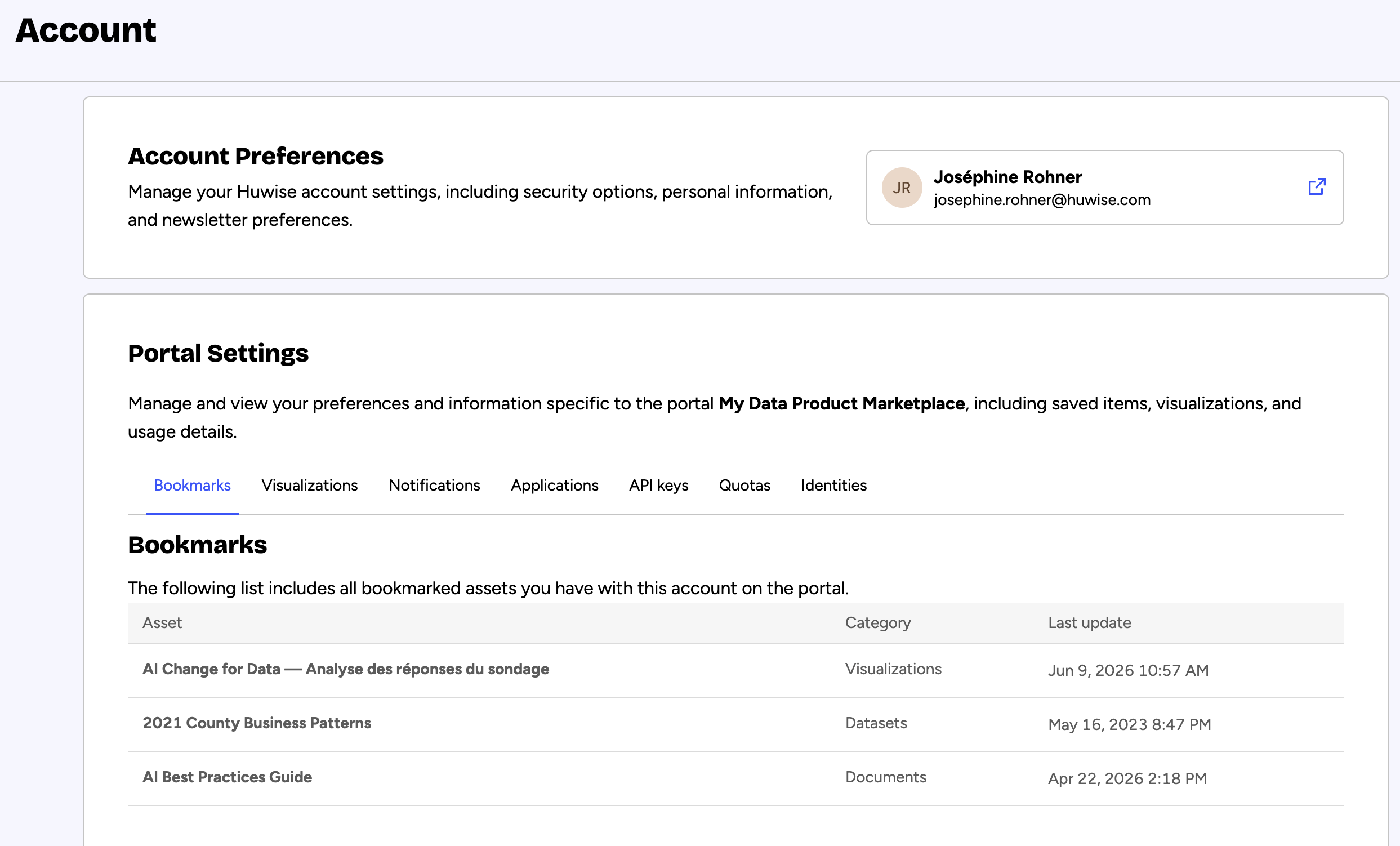
By doing so, they can find their favorite assets within their account settings.
Improving user sharing
Integrating social media
Share on social media buttons
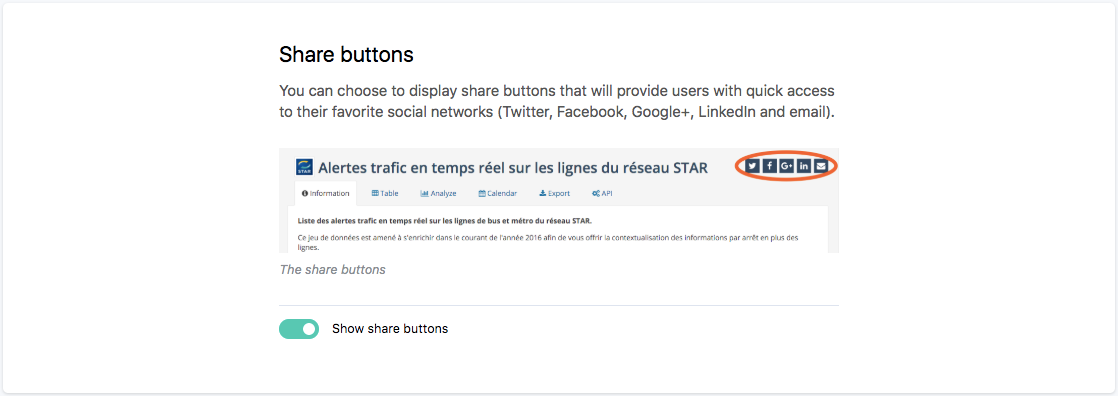
You can choose to display share buttons that will provide users with quick access to their favorite social networks (X, Facebook, LinkedIn, and email).
You can enable these share buttons in the Social networks & sharing section from the Configuration menu.
X cards
If a user tweets a link to a dataset on your portal, a summary can be displayed (the title and description of your dataset), associated with a X account of your choice.
This is a feature provided by X itself. It should work by default without additional configuration, except if your domain is not whitelisted for summary card by X.
You can check this by previewing a summary on the X Card page. Put the URL of one of your public datasets in the Card URL field on this page.
If, after clicking on Preview, your domain does not appear as whitelisted for summary card, you have to request approvals by clicking on the Request Approval button. You also have to input your X handle to associate your portal with these approved X Cards in the Social networks & sharing section from the Configuration menu.