
Branding your portal
To access the Branding menu, users must be granted the permission "Edit workspace properties."
Huwise portals can be customized to align with your corporate branding. Go to Portal > Branding in your back office to choose a portal name, write a portal description, choose a page title prefix, define the brand name, and add a favicon or logo for your portal.
Choosing a portal name and a description
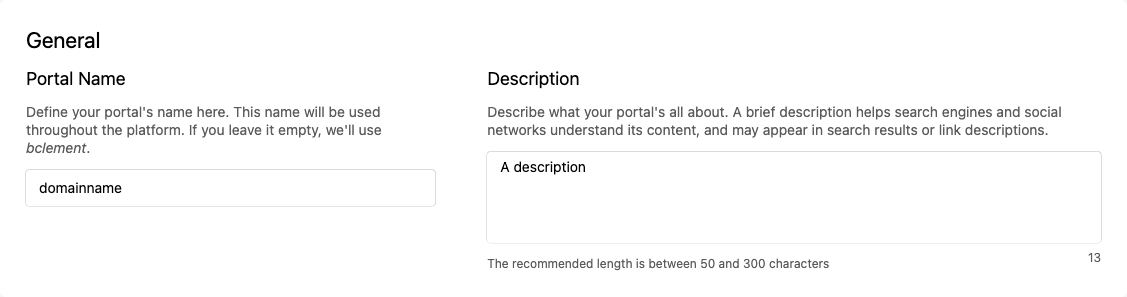
The portal name is used throughout the platform (login page, workspace configurations, etc.) as well as in workspace-related notifications sent by email. By default, the portal name is its identifier, that is, the name written in the URL of the portal.
The portal description helps search engines and social networks understand the content of the Huwise portal. It may also show up in search results and link descriptions.
To choose a new portal name:
In the Branding configuration interface, look for the "Portal name" and "Description" configuration.
In the textbox, write a new portal name and the description.
Click on the Save button in the top right corner.
Choosing a portal logo
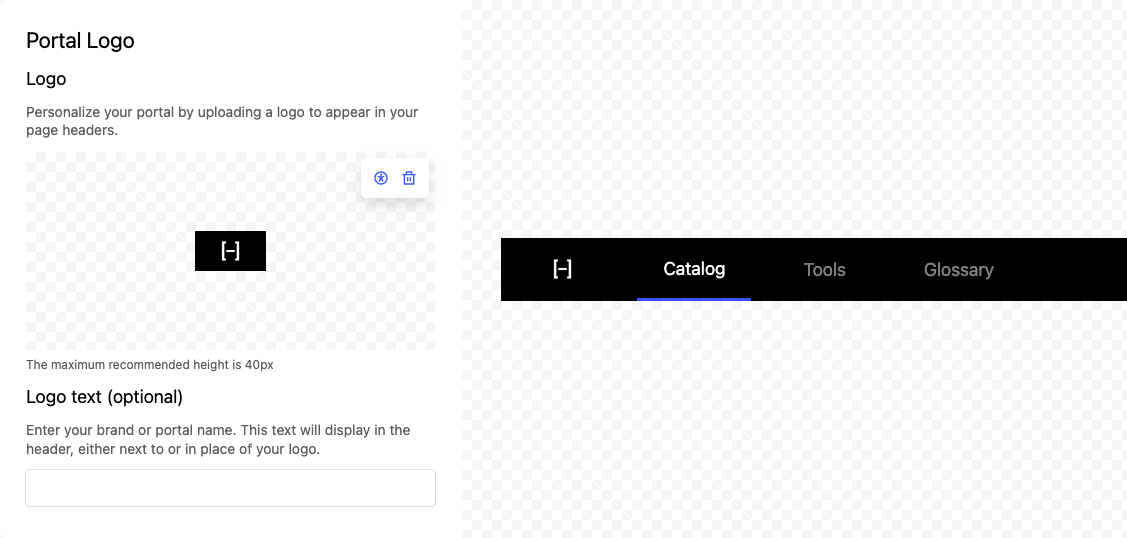
The portal logo is displayed on the header of your data marketplace.
If you prefer, you can add logo text that will replace your logo if you do not want to download an image, or else you can use it alongside your logo.
A preview shows you the outcome of your update.
We encourage you to complete the alternative text for the logo by clicking on the accessibility icon in the top right corner of your logo.
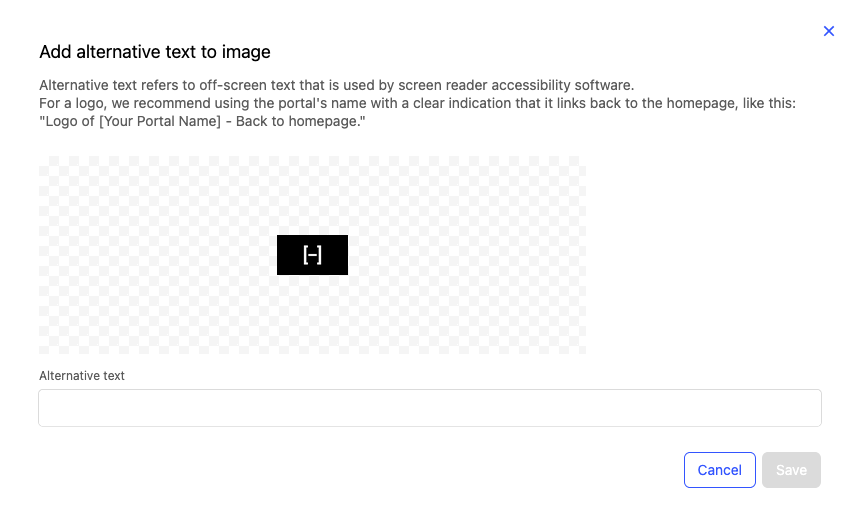
A window will open, providing recommendations to help you complete the alternative text. This information allows you to comply with WCAG criteria for alternative text on graphical elements.
Adding a favicon and the suffix in the browser tab
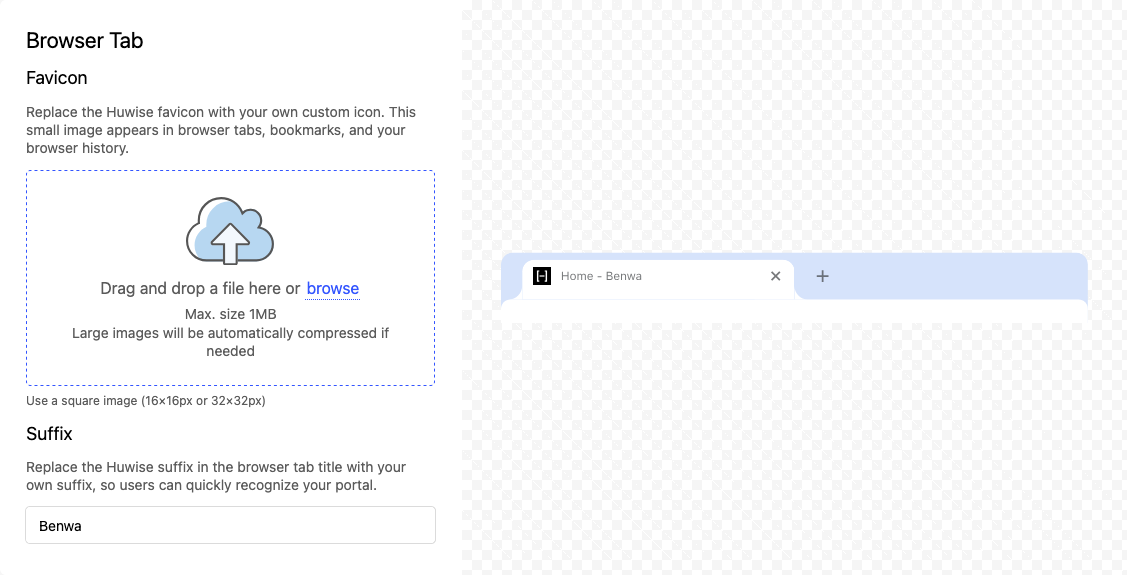
A favicon is the small image displayed next to the page title in the browser tab. The default favicon is Huwise's logo. It should be replaced with images (16x16 px or 32x32px).
Opt for quality and modern formats such as .svg rather than formats like .ico.
The page title suffix is displayed in the browser tab, usually preceded by the name of the currently visited page, with both elements separated by an em-dash (—).
Adding a logo for the login page
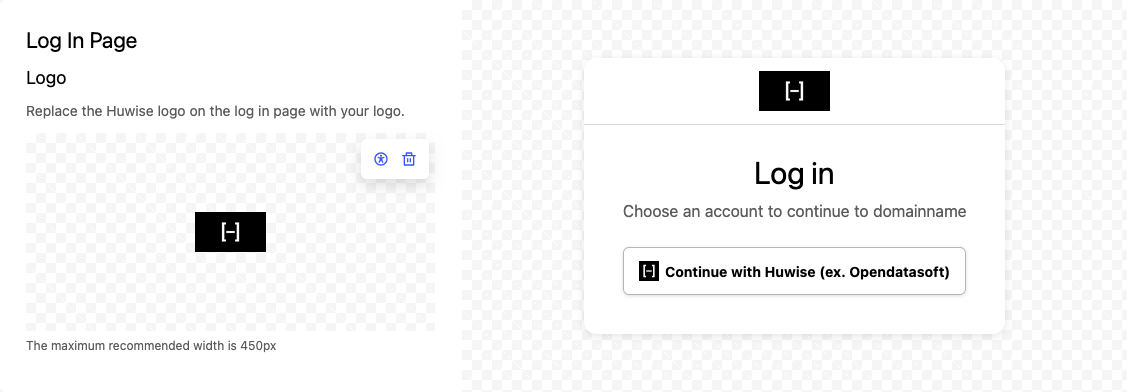
This specific logo is displayed on the login page of your data marketplace.
To maintain accessibility, you can specify alternative text for the portal logo.