
Managing the asset categories & themes
The Asset categories & themes page allows you to categorize your assets based on what the data they contain is about. All published assets on a Huwise portal should belong to at least one category or theme.
Each asset's category or theme is selected in its edition interface like any other metadata.
But the list of asset themes available for selection is configured in the back office from the Catalog > Asset categories & themes page.
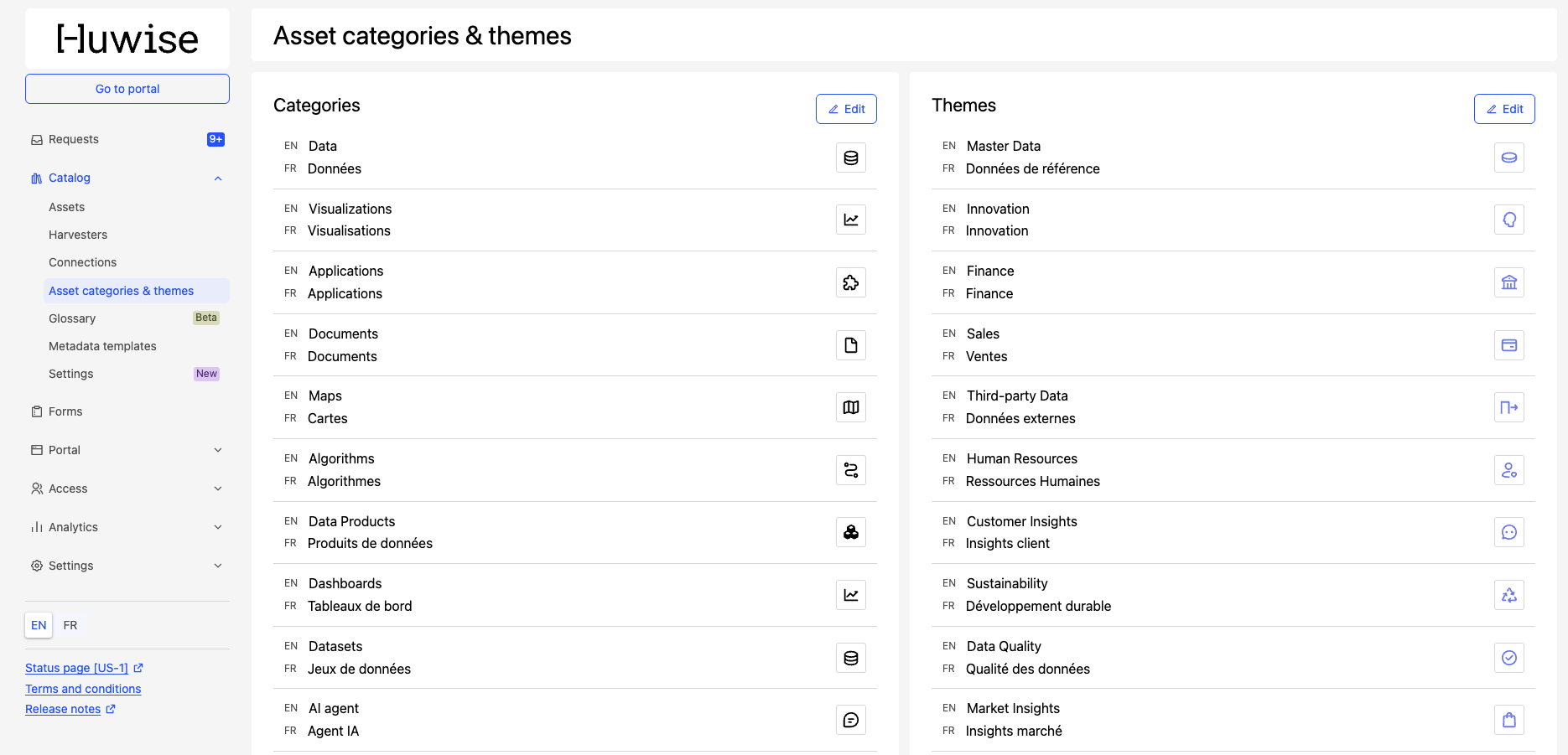
Click on Edit button to edit either a custom category or a theme. There are three modifiable elements:
Label, to define the label of an asset's custom category or theme
Image, to configure the icon
Color, to personalize the icon's color
You can delete a custom category or theme by clicking on the trash icon.
Note that by default, three generic asset categories exist on every new Huwise domain, and cannot be modified or deleted:
Data
Visualizations
Applications
We encourage you to use them, but there is no obligation to do so. If you still wish to modify them, custom categories can be used to replace them.
Defining a new asset category or theme
Click on the Edit button.
Click on the Create a category or Create a theme button at the top.
Provide the label for the new asset category or theme. You must provide a label for each language available on the portal.
Select a pictogram from the MingCute or the Huwise Icons lists.
Select the color to use.
Click the Save button at the bottom right corner of the page.