
Mapping your directory to groups in Huwise (with SSO)
The availability of this feature depends on your plan. Contact your Huwise account manager or refer to your contract to confirm access.
Huwise allows access to your workspace to be managed through a single sign-on (SSO) authentication solution, and currently supports the OpenID Connect and SAML 2.0 protocols.
Huwise allows you to map the relationship between your company's SSO user groups and your user groups in Huwise. This way, your users will automatically be assigned to their appropriate Huwise groups and have the permissions associated with those groups.
The instructions below detail how, for each group in your workspace, you can define automatic membership based on whichever attributes are relevant, anyone in your marketing department, or instead just marketing managers, all managers regardless of department, all IT department admins, or perhaps only people who are both a manager and part of the IT department, etc.
Where to start: creating a new mapping
To start, in your back office go to Access > SSO. Go to the configuration you wish to map, and click on the three-dot icon on the far right, then select Edit.
Click on the Group mapping tab, then click on the New group mapping button.
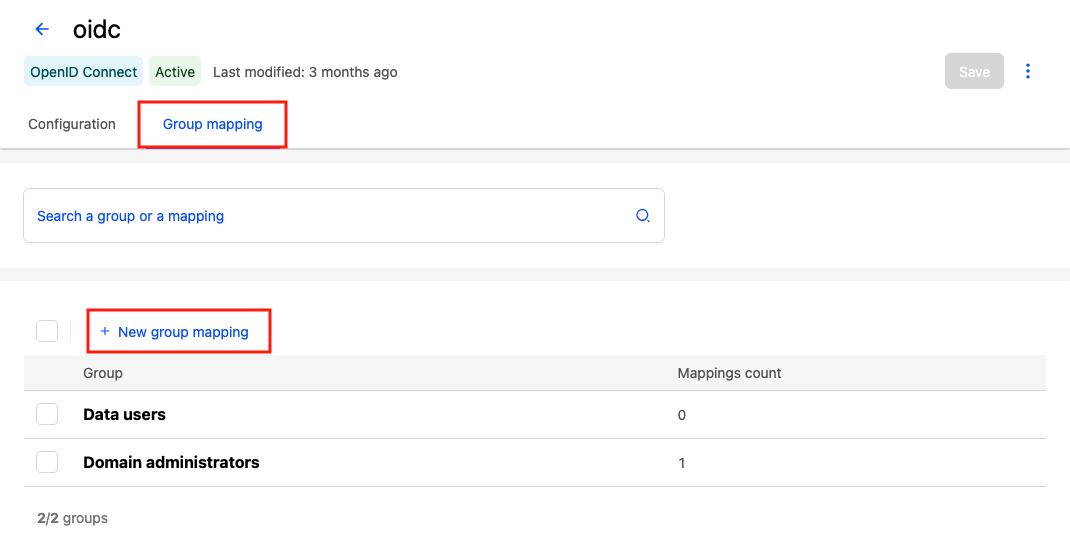
This will open a group mapping editor. From a dropdown menu of groups in your workspace, select the group you'd like to map.
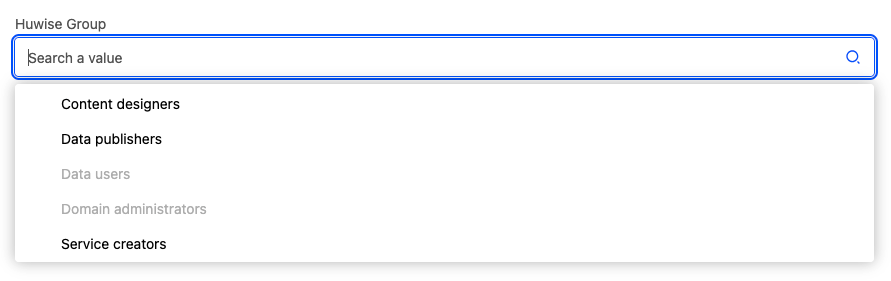
Note that groups for which a mapping has already been made are grayed out and can't be selected. To edit those, select them from the list on the previous screen.
Adding keys and values
Keys and values correspond to "attributes" in the SAML protocol, and "claims" in OpenID, and are how you configure the mapping.
Note that the claims used to map groups must be defined under the "Advanced settings" in your configurations.
Keys are unique, and keys and values are cumulative
Note that the same key cannot be used twice in the same mapping.
Especially, it's important to note that keys and values are cumulative. In other words, the criteria are restrictive and not additive. If you map membership to a group based on two keys, only a user that corresponds to both keys will qualify. And if multiple values are specified for a key, that user would need to correspond to all of the values to be included.
Alternately, if no value is provided, all values will be assumed.
An example
In the example here, we're mapping for a "Domain administrators" group in Huwise.
Let's imagine we want to give membership to the "Domain administrators" group to the support managers in our company's IT departments in Europe and in the United States, but not in Asia. And finally, we want the Chief Operating Officer, or COO, to have access as well. This would look something like this:
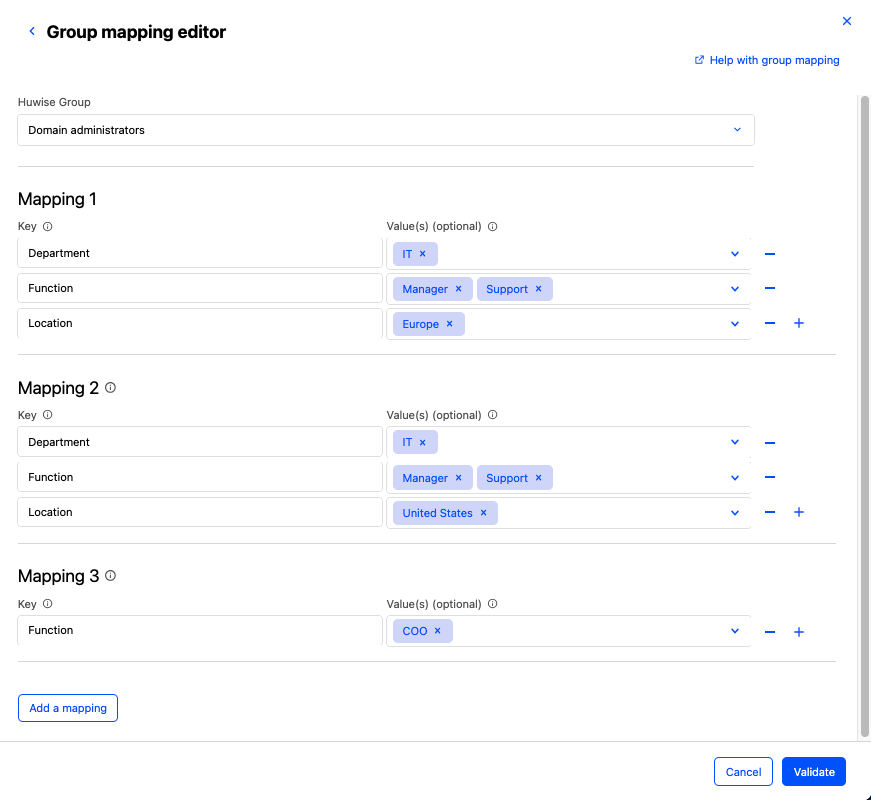
Mapping 1 gives membership to the "Domain administrators" group to the IT department, but only to IT users who are both part of the support team and are managers. Finally, we've limited membership to Europe.
Mapping 2 provides the same access to the IT support managers in the United States.
Remember that keys and values are restrictive or cumulative. So if you added "United States" to the location values in Mapping 1, this would limit the membership provided to users who are part of the European team and part of the American team. In our imaginary example these are separate teams, meaning that this would select exactly zero users.
And since within a mapping, keys are unique, so you can't simply add a second "Location" key to Mapping 1. Instead, you must create a second mapping, identical to the first except for the different location criteria.
Finally, Mapping 3 provides this access directly to the COO. There is no need to specify their department or location, for example, since there's only one COO.
Avoid mixing manual and automatic group management
Once you have mapped your groups, your users will automatically be given group membership through the SSO. Keep in mind, however, that users can still be given group membership manually.
As such, for users or groups whose memberships are managed through SSO, you should remove any existing manual assignments.
Alternately, if for a given user you provide membership to a group through the SSO, manually removing them from that group will not remove their membership, as membership is still being provided by the SSO.
In short, avoid mixing methods of providing group memberships.
Frequently asked questions
Should a user be managed both manually and via SSO?
No. Each user should be managed through one access method only, either via SSO group mapping, or else by manual assignment.
Mixing methods for the same user can cause inconsistencies.
Can SSO and non-SSO users belong to the same group?
Yes. You can safely mix SSO users and non-SSO users within the same group.
Users mapped to groups don’t appear in the group UI. Is this normal?
Yes. This is a known limitation.
The issue is clearly identified and part of ongoing work, but there is currently no timeline for completion.