
CSV files
You can use a CSV file (.csv) as a source.
A CSV file contains a list of fields typically separated by commas or semicolons.
Commas are commonly used in English-language files, whereas files from locales where the comma is the decimal separator, such as France, often use semicolons instead.
You can also use similar file types:
Tab-Separated Values (TSV) files (.tsv)
Text files (.txt)
DAT files (.dat)
For more information about adding a file source, see Creating a dataset from a local file.
Configuration
See here for a basic summary of configuring a data source.
Otherwise, simply note that when uploading a CSV or related file, the choices below are selected by clicking on the buttons explained in the tables below.
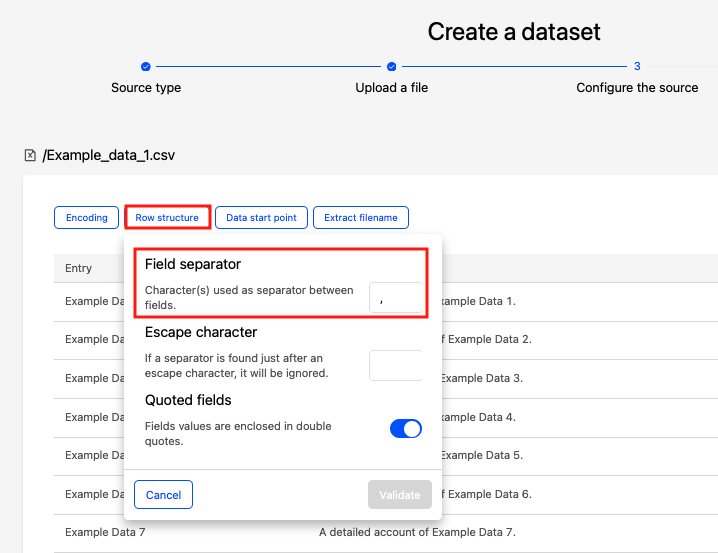
Here, for example, Row structure has been clicked on, allowing you to modify the field separator, if necessary.
Encoding | Description | Usage |
Choice of file encoding | Encoding of the file Character encoding is the way characters are represented in a saved file. Unicode (or UTF-8) is the universal standard, but some files might be encoded in a legacy format (for example, old versions of Excel), which would require setting the encoding manually. On modern software, this is usually unnecessary. | By default, the platform uses a heuristic to guess the encoding. If the guessed encoding is not right, select the right encoding to apply from the list or enter it in the "Other" text box. You can use any aliases from Python. |
Row structure | Description | Usage |
Field separator | Character used to separate fields | Enter the separator in the text box. The default value depends on the file format. Correct values are usually |
Escape character | If an escape character is found right before a separator, the latter will no longer be considered a separator. This configuration option avoids this situation. | By default, the text box is empty. If the file contains an escape character (for example, |
Quoted fields | For fields which values are enclosed in double quotes. | By default, this option is toggled on. Toggle off the option if the field values are not enclosed in double quotes. |
Data start point | Description | Usage |
First line number | For files that do not start at the first line, it is possible to define which line is considered the first one. The lines above will be skipped from the dataset. | By default, the dataset starts at line 1. Enter the number of the line where the dataset starts. |
Header | For files whose first line contains field names | By default, this option is toggled on. It makes the values of the first line field labels. Toggle off this option if the first line doesn't contain field names but data: the field labels will then be empty by default. |
Extract filename | Description | Usage |
Extract filename toggle | Creates a new column with the name of the source file. | By default, this option is off. Toggle on this option to extract the file name in an additional column. |