
Adding a text block in Studio
In Studio, you can add a text block using the text editor.
Adding text to a block
From the preview pane, click the block you want to edit
Remember, you can always change the block type afterward, if you change your mind. The block configuration will be reset after you change the block type.
From the left side pane, select Text as the block type
Click Next to continue with the configuration
Enter your text in the block
Format the text using the text editor and the toolbar
Click Save to save your work
Formatting the text
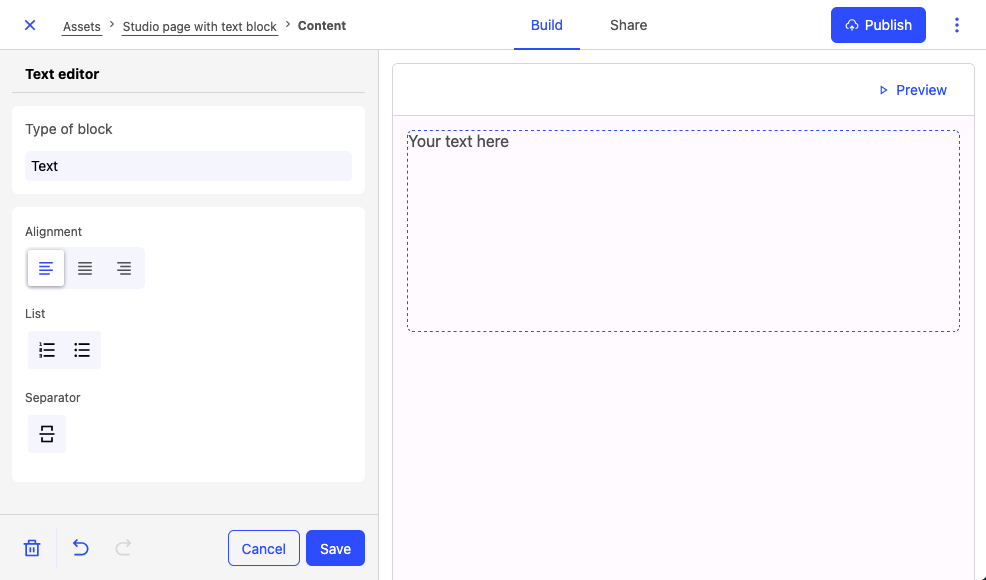
The left side pane of the text editor allows you to perform the following actions:
Controlling block alignment (right, center, or left)
Inserting or removing lists
Inserting separators
Undoing and redoing actions
When configuring the alignment, you can only use a single option (right, center, or left) for the whole block. You cannot define a different text alignment for a heading, a paragraph, or a list within a block.
Formatting text using the toolbar
Once you haveentered text inside a block, you can format it using the editor toolbar.
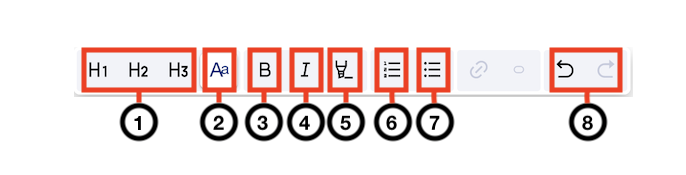
Annotation | Name | Description |
1 | Headings | You can choose from three levels of headings: |
2 | Paragraph | Adds regular body text. |
3 | Bold | Makes the text bold. |
4 | Italic | Italicizes the text. |
5 | Highlight | Highlights the text. |
6 | Ordered list | Creates an ordered list from the selected text. |
7 | Unordered list | Creates an unordered list from the selected text. |
8 | Undo and redo | Undoes and redoes the last actions that you performed. |