
Downloading a dataset
Huwise datasets can be downloaded in various formats. Flat file formats are always available for any dataset. Other formats may be available, notably if the dataset contains geographical coordinates.
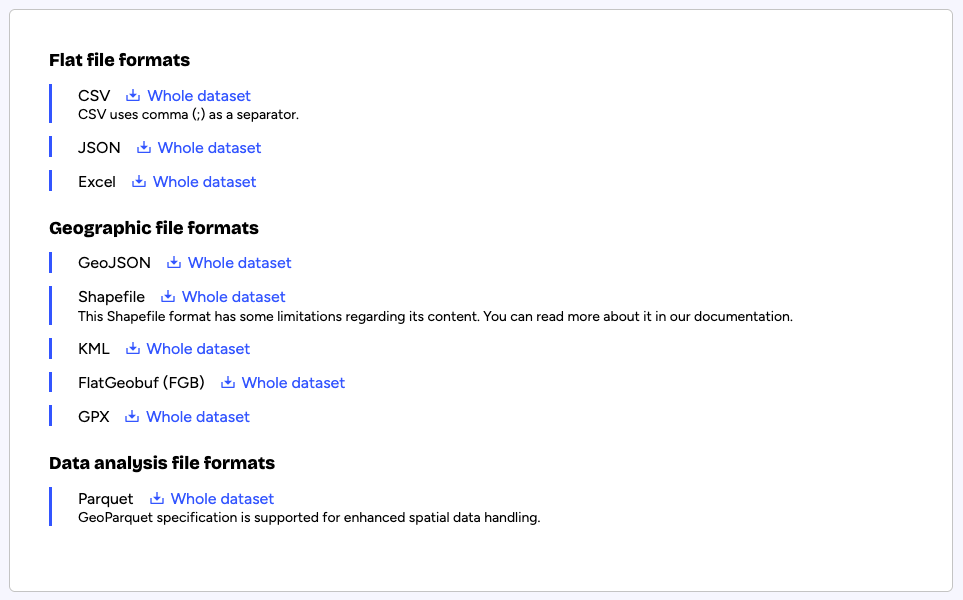
On a dataset, click on Export data on the right or the export data icon among the icons in the upper-right. Choose the file format to download.
Perform one of the following actions:
Click Whole dataset next to the desired format

If you have filtered the data and you want to export only the filtered data, instead click Only the selected records next to the desired format

When you download a dataset, by default the labels for the data will match those you see in the table view. If you prefer the download use the the technical labels (those visible in the dataset's schema), you can do so using the following steps.1) Right-click on Whole dataset for the designed format, copy the URL, and paste it into your browser 2) Find use_labels_for_header=true, replace "true" with "false", and hit enter You can also export datasets in other formats using the Huwise Search API.
Available export formats
A dataset can be downloaded in the following formats:
Flat file formats
CSV (Uses a semicolon (;) as the separator)
JSON
Excel (.xlsx)
Geographic file formats
The geographical coordinates of a dataset are expressed in WGS84 by default. If provided by the data producer, additional geographical projections may be available in the drop-down menu displayed above the export formats.
Geographic exports cannot contain more than one geographical shape type (point, polygon, linestring, etc.). If the dataset contains one geoshape field with multiple shape types, only the first type of the first non-empty record will be kept in the export.If the dataset contains multiple geographical fields (geoshape or geo_point_2d), only the first shape type of the first non-empty record will be kept in the export.
GeoJSON
Shapefile
Shapefile exports cannot contain more than 50,000 records. It is a limitation from the Shapefile specification itself.KML
FlatGeobuf (FGB)
GPX
Data analysis file formats
Parquet (more information)
In addition to platform-supported exports, alternative exports options are available via API.
Exporting and downloading images
Images imported into the platform can only be downloaded or exported one by one. There is no way to download all the images of a dataset at the same time.
Downloading an image
In a portal, go to the Images visualization tab of the dataset containing the image to download
Click the image to download
At the bottom of the image's metadata, click Download image
Exporting dataset to retrieve image URLs
In a portal, go to the Export tab of the dataset containing the images
Export the whole dataset, or only the selected records if the dataset is filtered
Open the exported dataset in the spreadsheet software of your choice
Find the field containing the URLs of the images and retrieve them