
Federating a Huwise dataset
A federated dataset lets you reuse a dataset published in another Huwise workspace without copying its records. Use federation when you want to make that data available in your own catalog while the source workspace continues to maintain it.
Note that to federate a dateset you need the "Create new datasets" permission and, naturally, the source dataset must be published and accessible to you. Your plan may also limit the number of federated datasets you can create.
What is a federated dataset?
You can think of a federated dataset like a hologram of or a window onto another, distant dataset. So even though the dataset is stored on and maintained by a different workspace, you can see and consult the data locally. Especially, you can use a federated dataset to enrich one of your own datasets!
Federated data has two key qualities:
Federated data updates automatically in your workspace. Because the provider maintains the data behind the federated dataset, changes to the source dataset are automatically reflected in your workspace.
Federated data does not count against your data volume quota. Again, because federated data is not literally copied into your portal, it cannot count against your quota.
Just remember that, for the same reasons, you can't manipulate the data in the same way you would local data. However, you can still filter the data to use only the parts you're interested in, as well as specify your own local metadata and visualizations for that data.
How to federate a dataset
In Catalog > Assets, click on the Create an asset button and select Dataset.
In the interface that opens, select the desired option under "Retrieve a dataset"
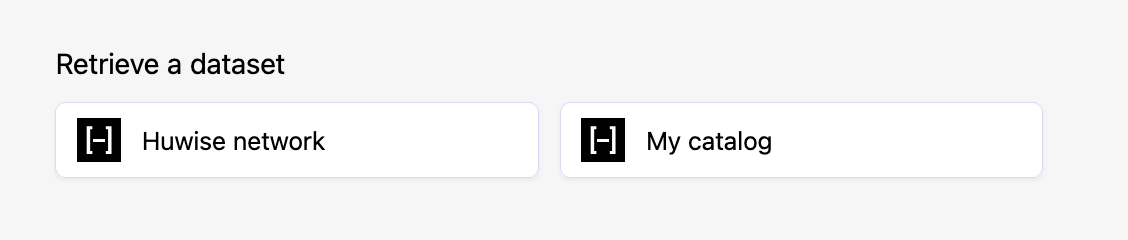
Use Huwise network to get a list of all public datasets published on all Huwise workspaces.
Use My catalog to get a list list of all datasets published on your current workspace. Depending on your workspace configuration, datasets from related workspaces may also be available.
Use filters and search terms to find the dataset you need, then select it.
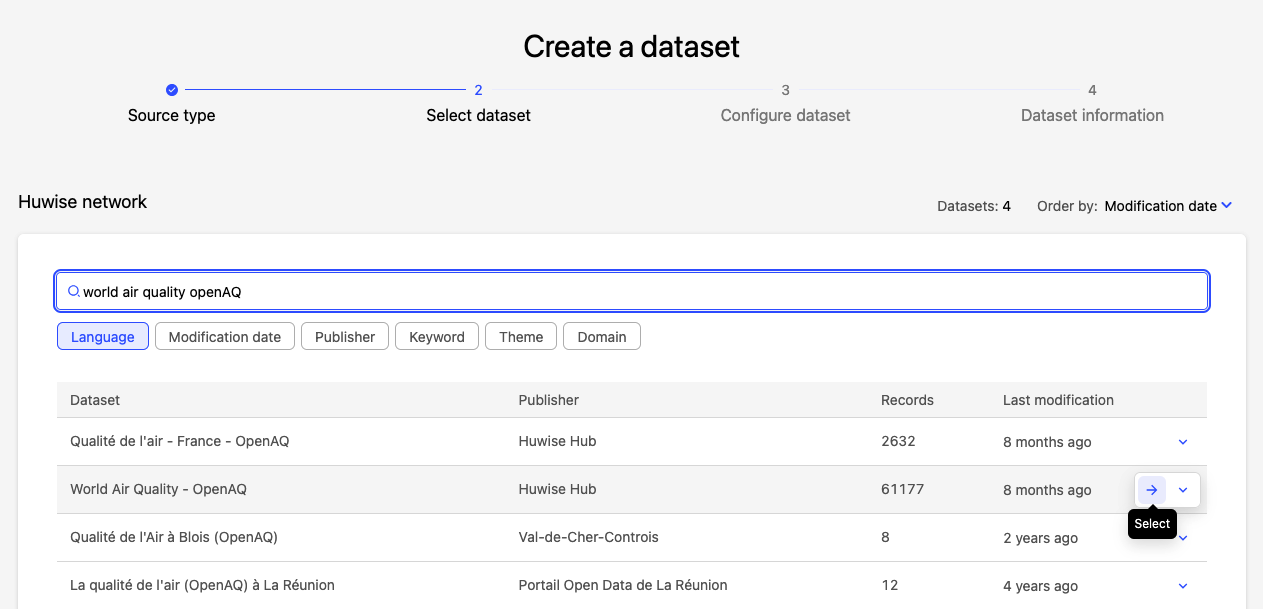
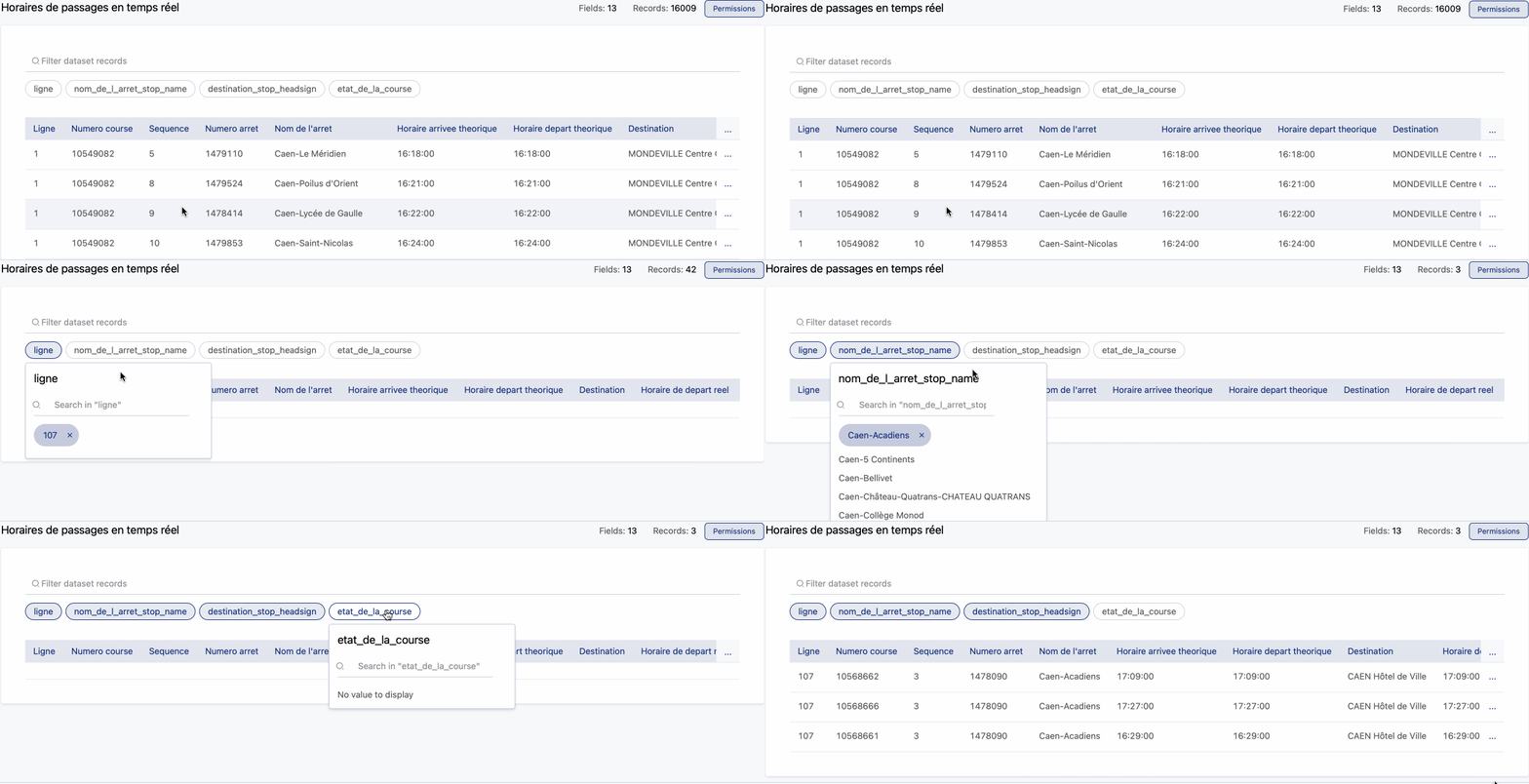
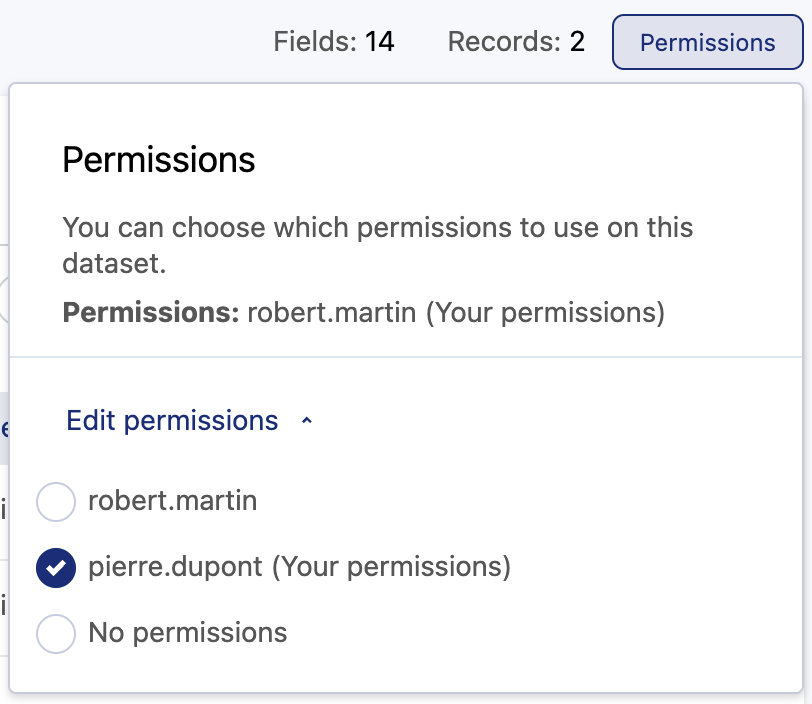
Review the preview of the records and apply any filters you need. To choose which permissions the federation uses to access the source dataset, click on the Permissions button and select yours or no permissions. Click Continue.
Configure the dataset information or use the prefilled values:
In the Dataset name field, enter the title for this dataset or keep the suggested one.
The Dataset technical identifier field is generated automatically from the name. To change it, click the edit icon.
If "Asset category" is displayed, select a category for the dataset.
Click on Validate to complete the wizard. The federated dataset is created as a draft. Publish it when it is ready.
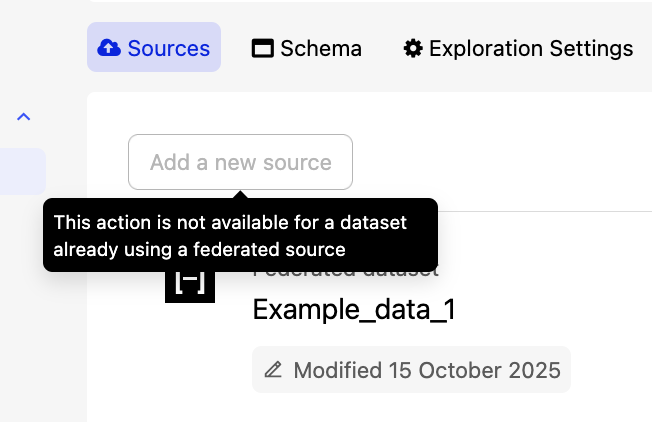
Remember, you cannot add another source or processors to a federated dataset. The corresponding controls are unavailable.
Frequently asked questions about federations
Can I override the existing metadata and visualizations?
Yes. When retrieving a Huwise dataset, you can override the metadata and visualization configuration. These new values are specific to your new, federated dateset, and do not modify the original.
To customize metadata inherited from the source dataset, open the federated dataset and go to the Metadata tab.
Click Override for the metadata value you want to customize, then enter the local value. To use the source dataset’s value again, click Return to original value.
If you have not overridden these values, the metadata of federated datasets will be updated once a day. Other modifications on the original dataset, such as visualization configurations or the dataset schema, will not trigger an automatic update. If you wish to include them in your federated dataset (and haven't overridden them), you must unpublish and republish the federated dataset for the latest modifications to be visible.
Can I add sources or processors to a federated dataset?
No. As explained above, though you can filter the original data or override some metadata, other actions such as adding sources or processors are not available for federated datasets. These actions are either disabled in the back office, as in the grayed-out Add a new source button shown below, or simply do not appear, as with the Processing tab.
Once a federation has been created, can a different user modify it?
When a federated dataset is created, the permissions used to access the source dataset are associated with the user who configured the federation. Another user can replace these permissions with their own permissions or configure the federation to use no permissions.
To change the permissions used by the federation:
Open the federated dataset and click Edit content.
Go to the Sources tab and select the federated source.
Click Update.
Open Permissions, then click Edit permissions.

Select your permissions or select No permissions.
Click Validate to save the change.
If another user’s permissions are currently associated with the source, Update is disabled and the following message is displayed: “If you want to update this source, please modify the federation permissions first.”
You must request further permissions from the admin in charge of the catalog that contains the remote dataset. Naturally, this is your own admin if the dataset is in your own catalog. For datasets found elsewhere in the Huwise network, you must identify the source catalog and contact its admin.