
Configuring data processing settings
In your back office, go to Portal > Data processing. This page groups several diffferent settings, each discussed below, with links to other pages where relevant for more detail.
Artificial intelligence provider
Here is where you choose the chat model used for AI-powered search and other related functions.
See Setting up search with AI (vector search) for more detail.
Explore Agent (Huwy)
Here is where you configure Huwise's chatbot Huwy — its visibility, appearance, and quotas.
See Configure your Huwy assistant for more detail.
Snapshots
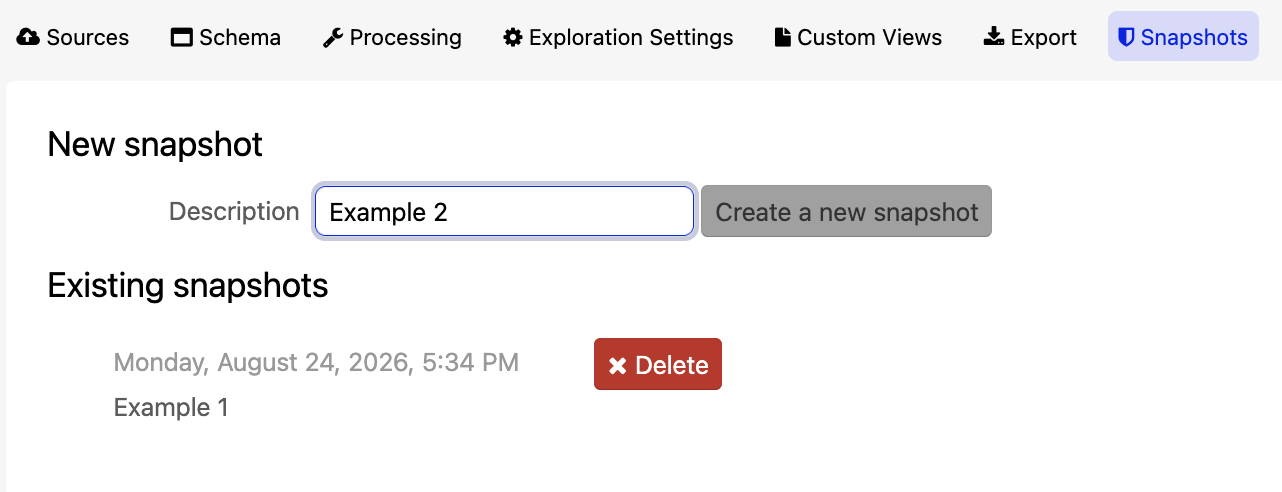
Snapshots let you create manual, one-point-in-time CSV backups of a dataset without managing the files yourself.
To enable the feature, in the back office go to Portal > Data processing and togglle "Activate the dataset snapshots feature."
Note that the dataset must also be published — snapshots can't be created from a restricted or unpublished dataset.
Once the feature is enabled, to create a snapshot:
Edit the contents of a dataset, and go to the Snapshots tab.
Optionally, enter a "Description."
Click Create a new snapshot.
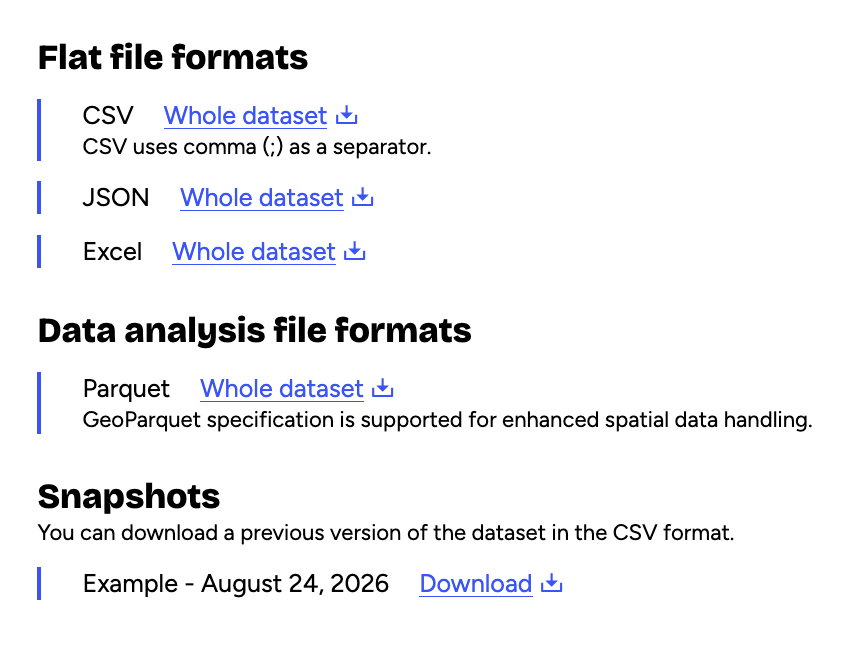
The snapshot appears under "Existing snapshots" with its creation date, and can be deleted from there. To download it, go to the dataset's Export tab.
Google geocoding API
Enter your Google Maps Platform credentials here to enable the "Geocoding with Google" processor, which turns an address into coordinates.
See Google's geocoding API documentation for how to obtain credentials.
ArcGIS geocoding API
Enter your ArcGIS credentials here to enable the "Geocode with ArcGIS" processor.
See Geocode with ArcGIS processor for how to use it once configured.
what3words API
Enter your what3words API key here to enable the what3words processor, which turns coordinates into a 3-word address.
See what3words processor for how to use it once configured.