
Configure your Huwy assistant
Huwy is an optional AI assistant built into the Huwise data marketplace experience.
As an administrator, you can configure several aspects of Huwy's appearance and behavior in your workspace.
Configuring Huwy's visibility
To configure Huwy's visibility, in your back office, go to Portal > Data processing > "Explore Agent."
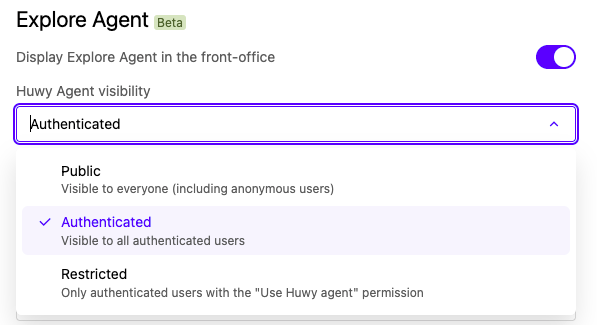
The three visibility modes
Public
Huwy is visible to all users, including anonymous visitors (not logged in).
This mode is only available if your domain allows public access (anonymous access enabled).
Authenticated (default)
Huwy is visible to all logged-in users on your portal. Anonymous visitors cannot see Huwy.
Restricted
Huwy is visible only to users or groups that have been granted the "Use Huwy agent permission." This mode allows you to limit access to Huwy to a subset of users — for example, a pilot team or your premium users.
Remember that assigning the "Use Huwy agent" permission is done from the Access > Users or Groups pages, and only takes effect if the visibility mode is set to "Restricted." In "Public" or "Authenticated" mode, it is ignored.
Impact on quota configuration
The visibility mode determines which users can access Huwy, and it also interacts with quota configuration:
Quotas for anonymous users only apply in "Public" mode.
In "Restricted" mode, quotas apply only to users with the "Use Huwy agent" permission.
See below for more information on quotas.
Customizing the widget appearance
You can adjust the appearance and positioning of the Huwy widget to match your portal's branding and interface.
Access the settings from your back office by going to Portal > Data processing > "Explore Agent".
All these settings are optional. If a parameter group is left empty, Huwy's default values apply.
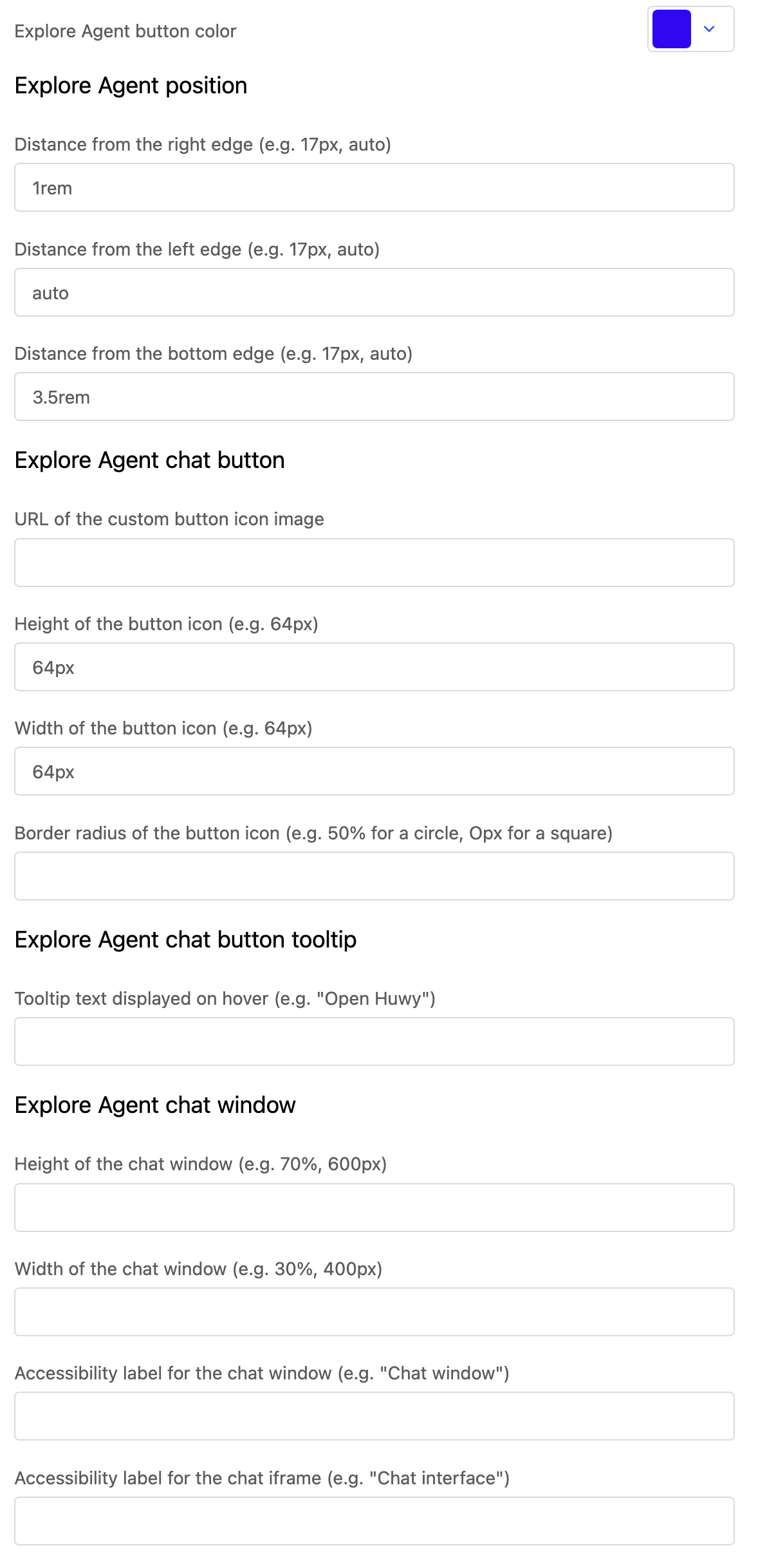
Explore Agent position
Set the position of the bubble on the page:
Parameter | Description | Example |
|---|---|---|
Right | Distance from the right edge |
|
Left | Distance from the left edge |
|
Bottom | Distance from the bottom of the page |
|
Explore Agent chat button
Customize Huwy's floating bubble icon:
Parameter | Description | Example |
|---|---|---|
Icon URL | Image URL to use for the button |
|
Height | Icon height |
|
Width | Icon width |
|
Border radius | Icon shape |
|
Explore Agent chat button tooltip
Configure the text displayed when hovering over the Huwy bubble:
Parameter | Description |
|---|---|
Text | Tooltip text (e.g. |
Visibility |
|
The tooltip text is shared across all portal languages.
Explore Agent chat window
Adjust the dimensions of the chat window:
Parameter | Description | Example |
|---|---|---|
Width | Chat window width |
|
Height | Chat window height |
|
Title (accessibility) | Iframe alternative text (for screen readers) |
|
Managing Huwy's quota usage
Quotas allow you to control how Huwy uses quotas on your workspace, helping you to manage costs and ensure fair access for all users.
Two levels of quotas
A monthly quota (plan) — This represents the total volume of Huwy usage authorized on your workspace for the current month. This is defined in your Huwise plan.
Daily quotas (configurable) — Set by workspace administrators. These apply every day and reset automatically at midnight (as defined by the workspace's timezone).
Configuring daily quotas
To access the quota configuration, in your back office go to Portal > Data processing > Agent section.
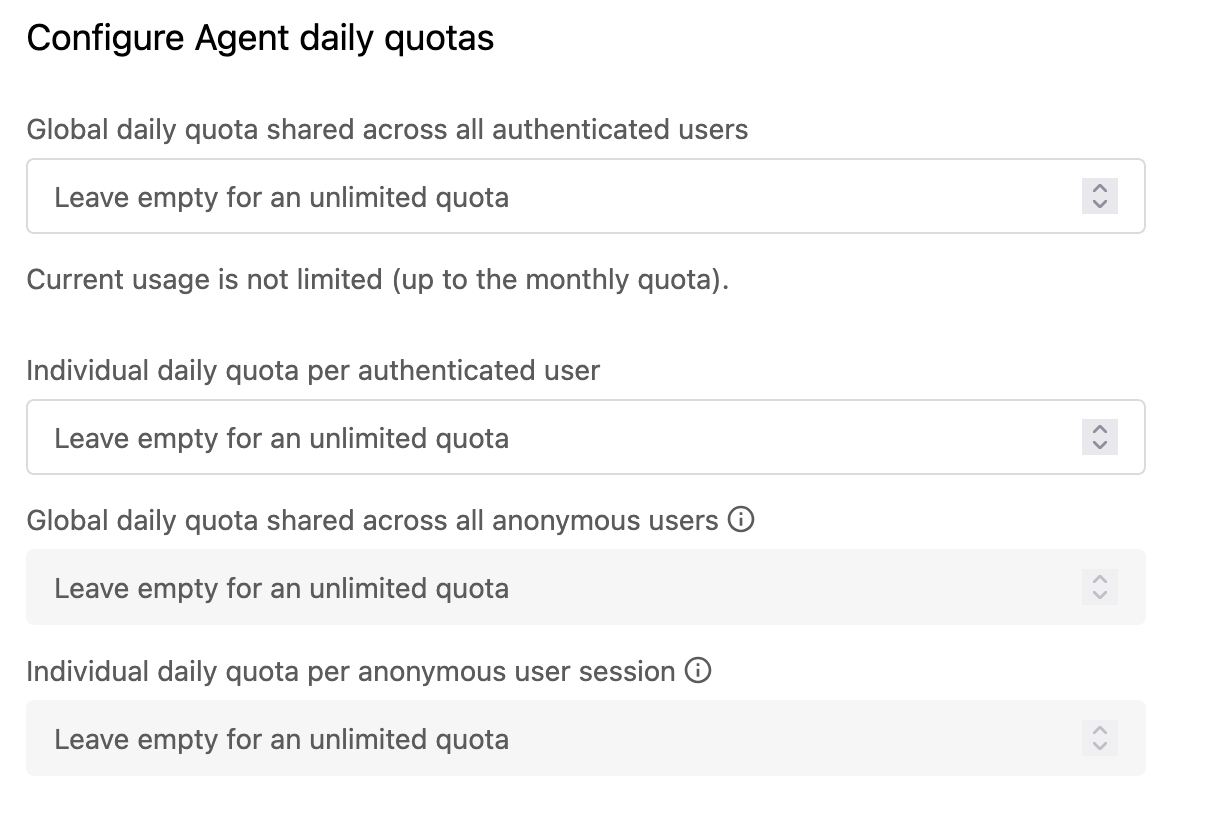
Four types of daily quotas are available:
Quota | Description |
|---|---|
Daily quota for all authenticated users | Total number of Huwy requests allowed per day, shared across all logged-in users on the workspace (global pool) |
Daily quota per authenticated user | Maximum number of Huwy requests per logged-in user per day |
Daily quota for all anonymous users | Total number of Huwy requests allowed per day for all anonymous visitors (global pool) — visible only if anonymous access is enabled on the workspace |
Daily quota per anonymous user | Maximum number of Huwy requests per anonymous visitor per day — visible only if anonymous access is enabled on the workspace |
Note that any empty field is equal to an unlimited quota. If a field is left empty, no daily limit is applied for that quota type.
Consistency rules
The per-user quota must be less than or equal to the global pool quota for the same user group.
For example, if the global quota for authenticated users is 500 requests per day, no individual user can have a quota greater than 500. If this rule is not respected, the configuration will be rejected.
Anonymous user identification
Anonymous users are identified by their IP address. In certain contexts (schools, corporate proxies, shared networks), multiple users may share the same IP address and be counted as a single user for individual quota purposes.
Daily reset
Remember, all daily quotas reset automatically at midnight in your workspace's timezone.
What happens when a quota is reached?
When a quota is reached, Huwy displays an error message inside the conversation that informs the user that a limit has been reached, and that the user must wait until the next reset.