
What to do when a dataset reaches a limit during publication
When a dataset reaches a limit during publication, the publication can be refused outright or stop partway and leave some of your records out. This page helps you identify which limit was reached and what to do about it.
This page helps you resolve a failed publication reported as "Alert detected during processing:" followed by a specific limit — identifying which limit was reached and what to do about it. If your dataset's message instead starts with "Error during processing:", the actions on this page don't apply — see If the message isn't about a limit below.
To resolve the issue, you should:
Identify the message associated with the failed publication.
Match the message to a specific limit using the table below.
Determine where the limit is set and apply the solution. The applicable limit may be in your plan, a workspace setting, or be a platform limitation.
If not resolved, troubleshoot these possibilities
For what each quota counts and how it's calculated, see Your plan and quotas.
1. Identify the message associated with the failed publication
A failed publication can be reported in several places, and the information you get isn't the same in each one. The message on the dataset identifies the limit; an email alert tells you that a limit was reached but not which one.
In the dataset in your back office
On the asset setting page:

The message starts with “Alert detected during processing:” followed by a short label naming the limit. If a More details button appears next to it, you can open a panel with a fuller explanation.
Note that this message reflects the dataset's current state, not its history. Once the dataset publishes successfully, the message disappears. If a scheduled republication succeeded in the meantime, you won't find it any more.
On the asset content page
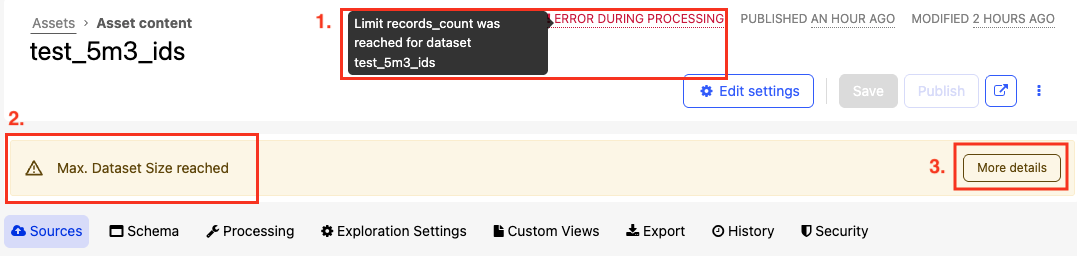
The same alert also appears on the asset content page, where it identifies the limit that was reached, and provides the More details button.
When you click on the “More details” button
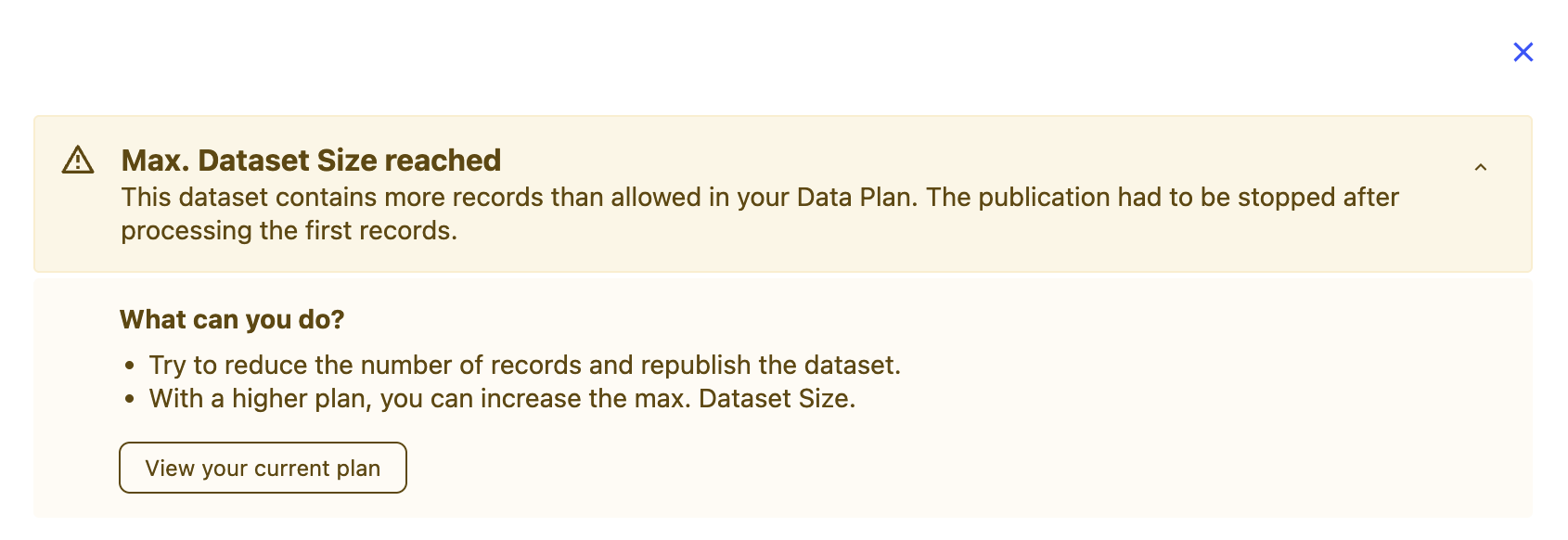
Click More details to open a panel that identifies the limit, explains why the publication was refused, and lists what you can do about it. If you have the required permissions, the panel also links directly to your plans page.
Remember that More details isn't available for every failure. It appears for the three cases identified in the table below. For other limits, the message on the dataset is all the information provided in the interface.
In an email alert:
If you're set up to receive alerts for a workspace, a failed publication also sends an email. The subject names the workspace and the dataset, and the body gives the dataset, the time, and this message:
***Someone reached a quota limit when publishing the dataset***
The email tells you that a limit was reached, but not which one. To identify the specific limit, check the message on the dataset in the back office.
Unlike the message on the dataset, however, the email remains available after the dataset publishes successfully.
The email is therefore your only record of a publication that failed and then later succeeded. If you're investigating a publication that has since gone through, start with the email.
2. Match the message to a limit
Once you have the message shown on the dataset, use the table below to identify the limit that was reached and what to do next.
Limit `records_count` was reached for dataset `dataset_id`
Message on the dataset | Limit reached | What to do |
max. Dataset Size reached | The maximum number of records allowed in a single dataset | See Your plan and quotas page. If the quota has not been reached, see below. |
max. Published Data (GB) reached | The total size of all published local datasets in your workspace | |
max. columns of the same type reached | The maximum number of columns of one type that a dataset can contain. (This is a platform limit, not a quota in your plan.) | See If your dataset has too many columns of the same type below. |
*Limit [name] was reached for dataset [dataset]
| A limit with no dedicated explanation. The name in the middle of the message identifies it. | Contact the Huwise support team and quote the message in full. |
Note that "max. Dataset Size" counts records, not bytes. A dataset can be small on disk and still reach this limit if it contains a lot of rows. If the message mentions size but your file is not large in bytes, this is usually why.
3. Determine where the limit comes from
Once you know which limit was reached, check what controls it. Depending on the limit, this may be your plan, a workspace setting, or a platform limit.
If you reached the record limit
Your plan sets a maximum number of records per dataset. But a workspace can also have its own, lower limit.
The publication message doesn't tell you which of these two limits was reached, so check whether a workspace limit has been configured.
Go to Access > Security, find the “Data volume” section, and check the “Max number of records by dataset.”
You need to be a domain administrator to see and change this setting.
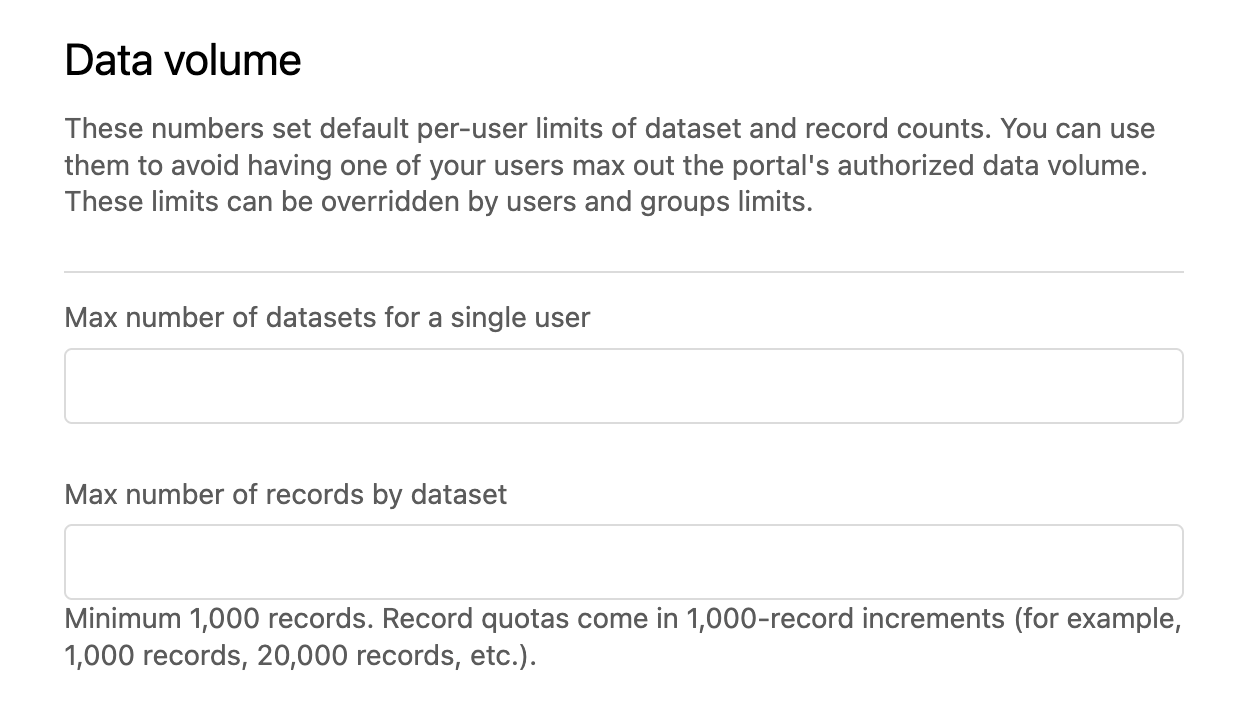
If a value is set and is lower than your plan's maximum, this is the limit that stopped the publication. Raise the value, then unpublish and republish the dataset so that its records are loaded again.
If no value is set, you have reached the maximum defined by your plan. See Your plan and quotas for what this quota counts and how to change it.
Note that setting the workspace limit higher than your plan's maximum has no effect on your plan’s limit. The lower of the two limits always applies, so the maximum defined by your plan remains the ceiling.
What happens to your records when the record limit is reached
Reaching the record limit doesn't necessarily prevent the dataset from being available on the portal. Records loaded before the limit was reached remain available, so the dataset can be visible and searchable while still missing some of its data.
As a result, the problem may first be noticed by someone browsing the portal rather than by the person who published the dataset. If a colleague reports missing rows and you find a record-limit message on the dataset, the two are the same problem.
Two signs can confirm this:
The record count stops at a round number slightly above a round limit — for example, 10,500 records when the limit is 10,000. Records are loaded in batches, so loading stops at the end of the batch that crossed the limit rather than exactly at the limit.
The source contains noticeably more records than the dataset, and the source hasn't changed.
If the dataset has several sources, look carefully: sources that fit are loaded normally, a source that crosses the limit is loaded only partially, and sources after that one aren't processed at all. A dataset can therefore be missing entire sources without clear indication in the catalog.
If your dataset has too many columns of the same type
This one isn't about your plan. It means that your dataset contains more columns of a single type than a dataset can hold. Remove some columns from the dataset, then publish again.
4. If not resolved, troubleshoot these possibilities
Your quota usage looks low but publication is still blocked
If you've checked the limit that applies to you and it doesn't explain what you're seeing, there is still another possibility. Sometimes the plans page will show that you still have capacity, but publication will still fail.
At this point there's nothing further to diagnose from your workspace. Contact the Huwise support team with:
the name of the workspace and the dataset that won't publish
the message shown on the dataset, copied in full
the time the publication was attempted
Huwise’s support team can identify which quota is blocking the publication and what needs to happen to release it.
Note that your domain administrator may also be able to help, since some quota settings are managed above the level of an individual workspace.
If the dataset published on its own later
A publication that was refused isn't tried again automatically. The dataset keeps its failed state until something starts a new publication — either you, or its next scheduled republication.
This is why a scheduled dataset can appear to fix itself. The refused attempt stops there, and the next scheduled run is a fresh attempt. If space has been freed by then, that attempt goes through, and you may never see the failure in the back office at all.
So an intermittent failure on a scheduled dataset usually means a quota that is close to its limit, not a problem with the dataset. Treat a second occurrence as a signal, rather than waiting to see whether it clears again.
To find when the next attempt is due, open the dataset and check its Scheduling tab. For more information, see Keeping data up to date.
Note that schedules run in the timezone of Paris, France, whatever your workspace's timezone. Keep this in mind when you compare the time in an email alert against your scheduling interval.
If you can't open the plans page
You may not have permission to check quota usage yourself. If Plan doesn't appear under Settings in the back office, or you can't open the page, you don't have the required permission.
You need the permission "Edit workspace properties" to open the plans page. Seeing which datasets consume the most quota, you also need the permission "Edit all datasets".
Your domain administrator has these permissions. Contact them and provide:
the name of the dataset
the message shown on it
the time the publication was attempted. That gives them what they need to identify the limit that's blocking publication.
This is a permissions issue, not a sign of a problem with your workspace. If you don’t have access to the plans page, the More details panel will not link to it, which is why the panel may contain less information than this page describes.
If the message isn’t about a limit
Not every failed publication is caused by a quota. If the message on your dataset starts with “Error during processing:” rather than “Alert detected during processing:”, the publication failed for another reason.
The cause varies from one error to another, so there is no single solution. As a starting point, check the dataset's source and processing configuration: make sure the source is still reachable and that its structure hasn't changed since the last successful publication.
If you cannot resolve the issue, contact the Huwise support team and provide:
the complete message
the dataset’s name
the time at which the publication was attempted
Who to contact, in summary
If you still need help resolving the limit, here’s who to contact depending on what you need.
Your CSM and commercial contacts are listed on the Information tab of your plans page. For more information, see Your plan and quotas.
What you need | Who to contact |
To know which limit is blocking a publication after checking the quota yourself | |
To raise a configured limit or to check usage you can't see yourself | Your domain administrator |
To discuss whether a larger quota suits your project | Your CSM |
To change your plan or your contract | Your commercial contact |