Metadata in Huwise
Metadata is the information, or "data," that describes a dataset. Metadata can be basic and universal, like a text description of an asset, or more technical, like a bespoke field that is used by only a subset of your users.
Completing an asset's metadata is critically important. In a real sense, your asset's metadata is as valuable as the data itself: It helps make sure that the asset can be found, understood, and reused by users.
We not only encourage you to enrich your datasets with metadata — we insist. Without it, your data may become a beautiful island that nobody even knows exists, let alone visits.
The different kinds of metadata
There are several different kinds of metadata on the Huwise platform, depending on the type of asset. These are found on tabs which will be visible depending on the asset type and if that metadata has been configured for that asset.
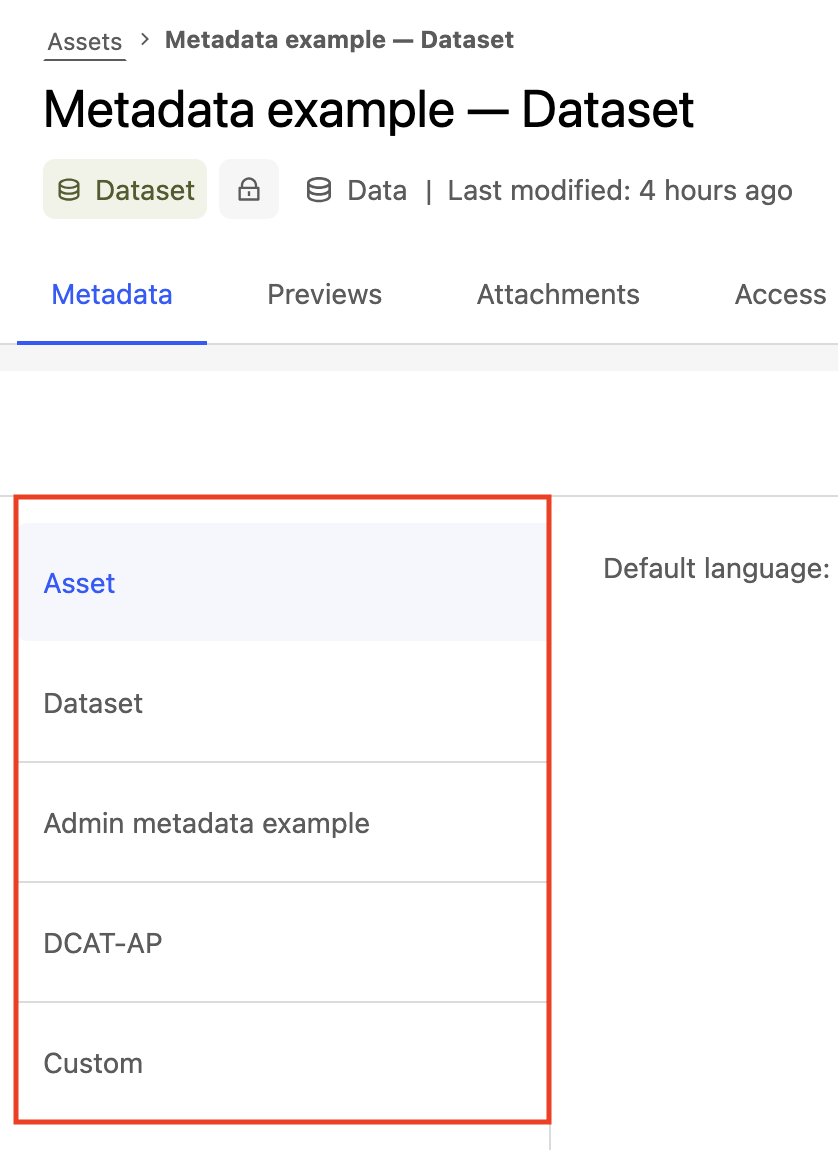
Asset: This tab contains the metadata standard to all asset types. In your portal, these are displayed for users under "Metadata" when they open the asset.
Dataset: This tab is for the metadata specific to datasets in Huwise. Once configured, these metadata fields are also displayed for users.
Admin: Intended for internal use only, these custom templates are displayed in the back office but not in your portal.
Interoperability: These metadata allow you to work with other systems for interoperability or regulatory compliance (for example, the DCAT standard for countries in the European Union), and are also visible in the portal once configured.
Custom: It's possible for admins to configure custom metadata templates. See here for more information.
Applicative metadata: On demand. These are intended for specific applications and not expected to be used by users directly. In most cases, the users will never have access to or edit them by themselves. They can be visible in the portal but also through the Huwise Search API. These extra metadata are not included in this documentation. If you think you may have a specific metadata need not already met above, please contact us.
Where to configure and fill out metadata
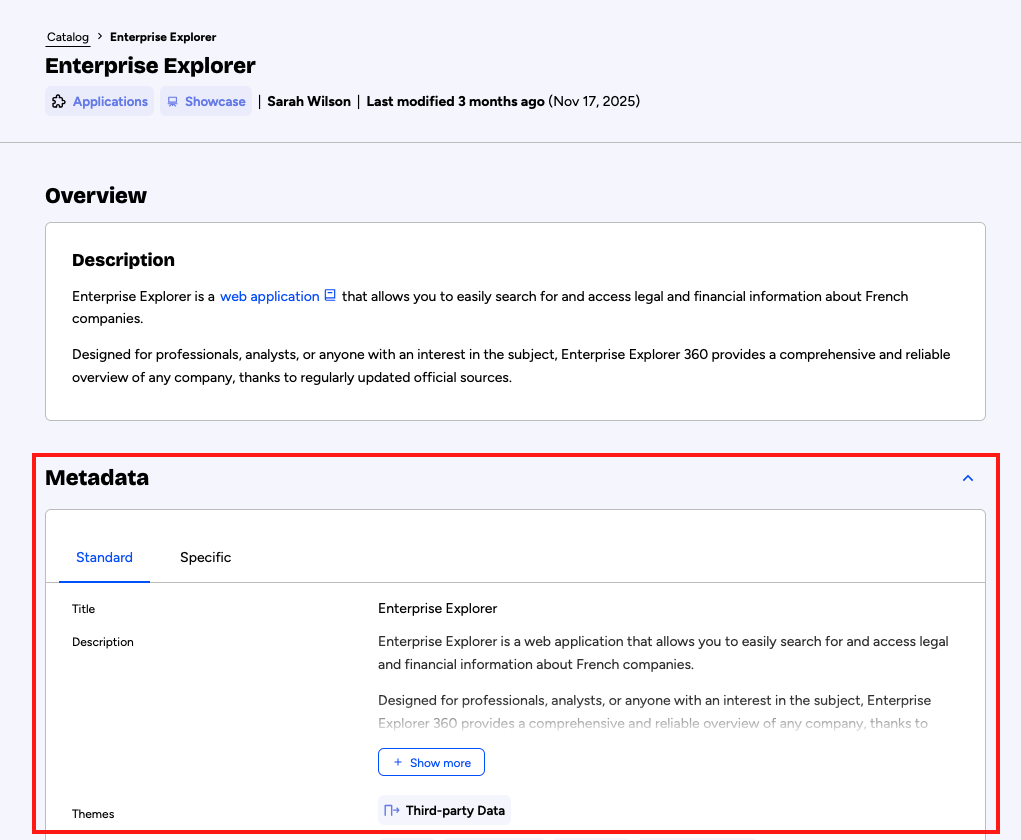
In the portal, an asset's metadata is visible on the asset page, as in the image at the top of this page. By default metadata is listed after the overview, but keep in mind that the asset page can be customized by a portal's admins.
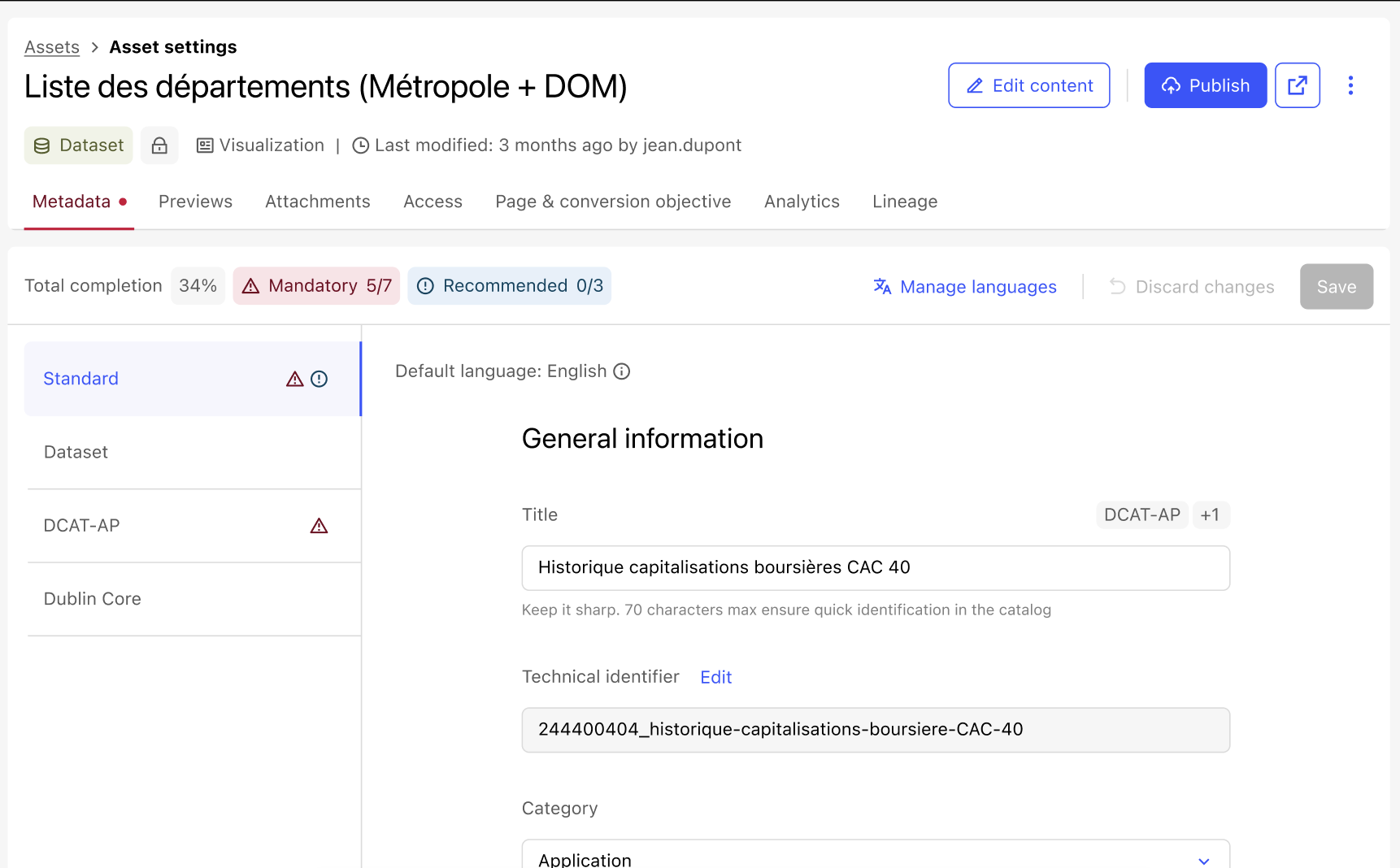
In the back office, open the asset, then click on the Metadata tab if it's not already selected.
Configuring metadata templates
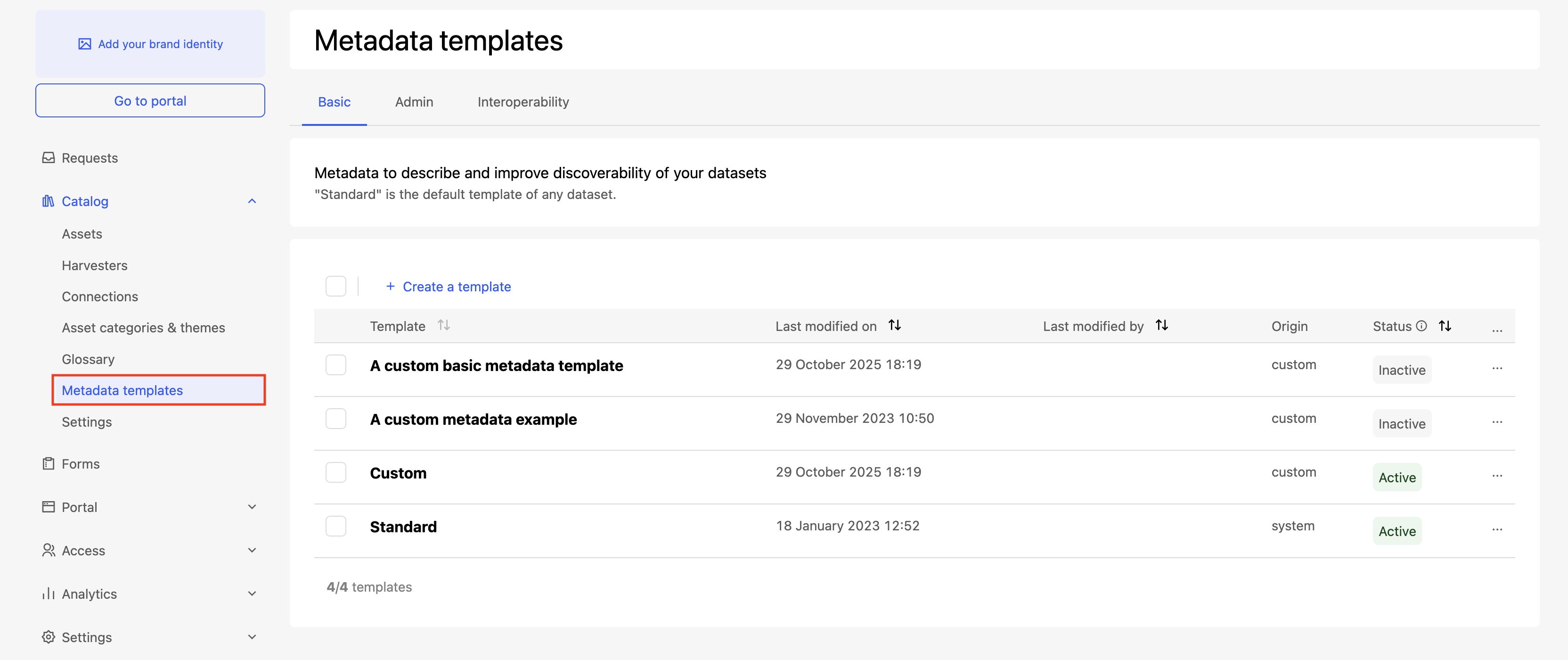
Metadata templates are configured on the page Catalog > Metadata templates.
Filling out metadata
In your back office, each activated template has its own tab. Enter the metadata for each asset within these tabs.