
Creating Code editor pages
If necessary, Huwise allows you to create fully customized content pages using HTML and CSS.
Note that for most use-cases, the platform also provides other flexible and easier-to-manage alternatives.
Alternatives to Code editor pages
In the past, Code editor pages were often used to build customized homepages, landing pages, topic pages, or dashboards.
Huwise now offers purpose-built, no-code alternatives that don't require technical skills and are significantly easier to maintain as your team grows:
Studio pages — design rich, flexible pages with a visual editor that any team member can use and update
Style customization for your portal — adjust your portal's look and feel directly from the settings, no code needed
Showcases — highlight your key datasets with a curated, editable layout built for non-technical contributors
These tools are designed so that content editors, data stewards, and portal administrators can own and evolve your portal independently — without relying on a developer every time something needs to change.
Creating a Code editor page
If you still need a fully customized page, in your back office go to Catalog > Assets, and click on the Create and asset button in the upper right-hand corner.
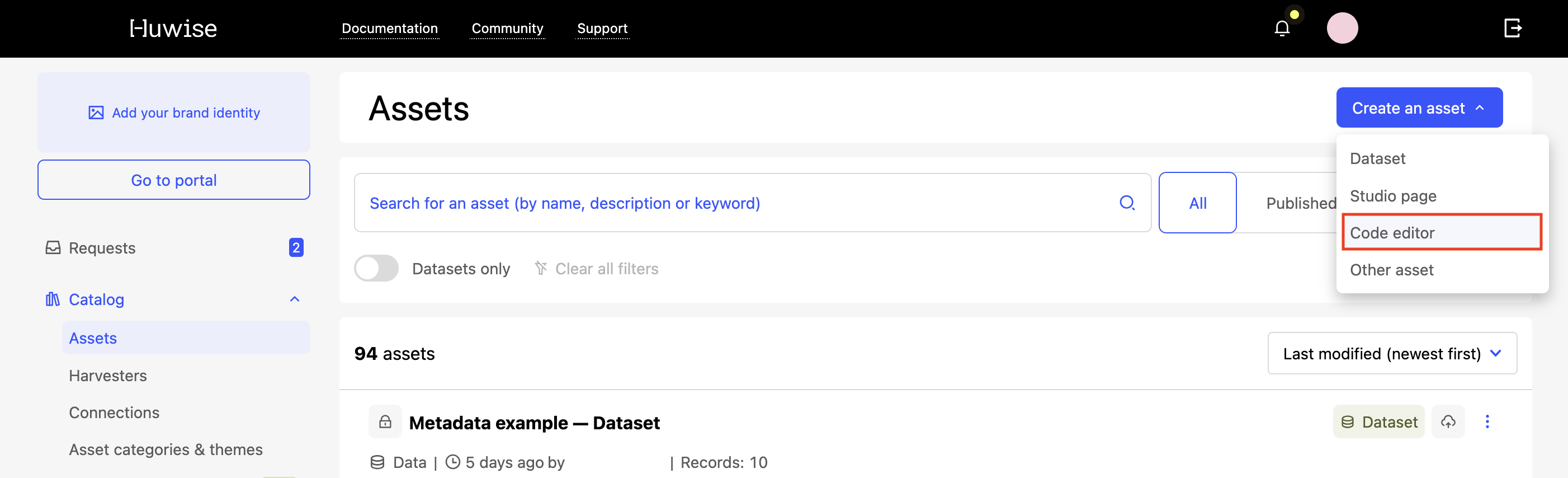
Click on Code editor. This will open a new page.
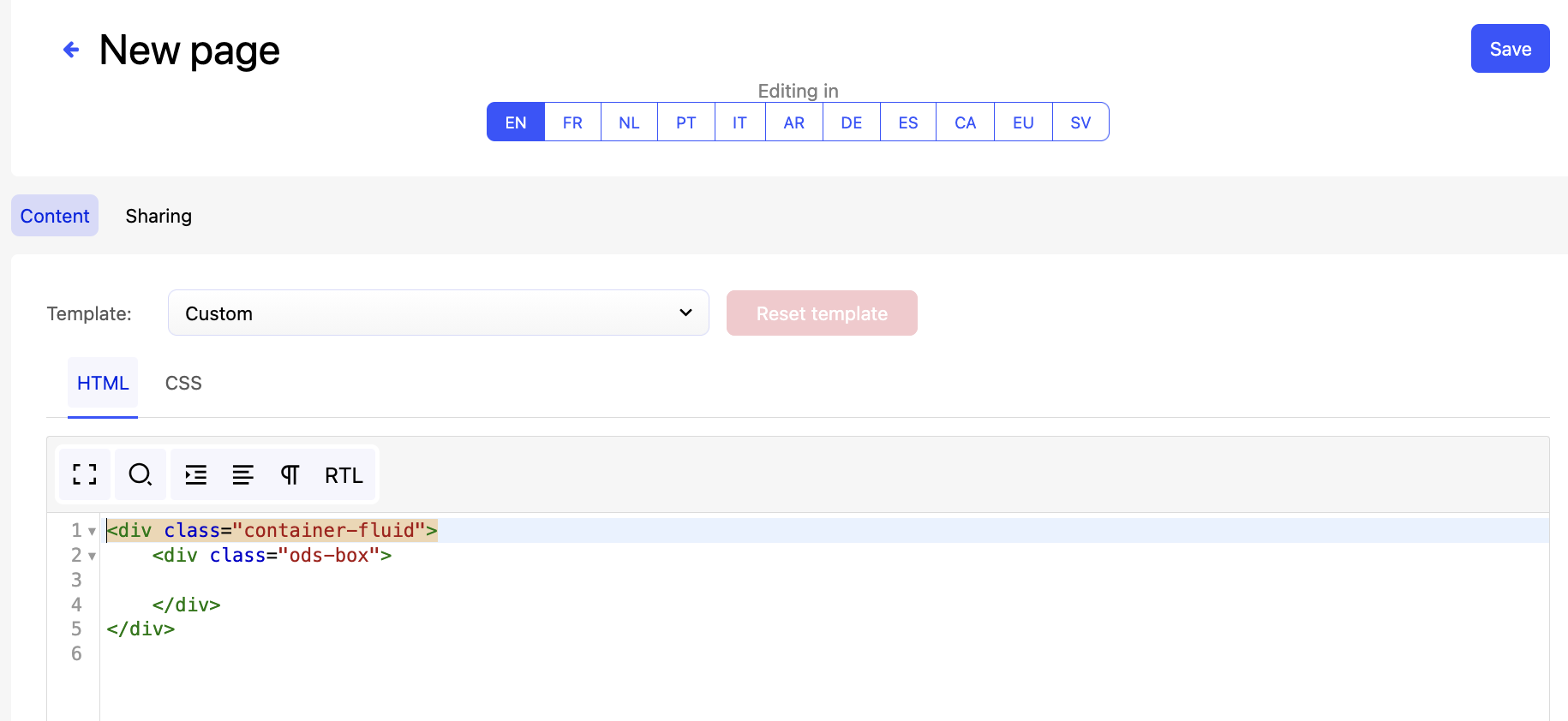
In the image above, you can see the different parts of a Code editor page:
The Content and Sharing tabs at the top. Once you have saved and published the page, you can go to the Sharing tab to obtain the URL for the page or embed it in an iFrame.
By default, an empty "Custom" template is selected, but several other preset templates are available, such as a contact page or dataset themes page.
The HTML and CSS tabs where, naturally, the custom coding happens.
Also note that if your portal has multiple languages, you can select which language you're in at the very top of the page.
Once you click on the Save button, you will be prompted to give your page its title, which also determines its URL. Remember that the title is the name under which your page will appear in your catalog.
Your page is an asset

Once your page is saved, it appears in your catalog, where it has an asset page like any other asset.
And like any asset, we strongly encourage you to provide fulsome metadata, such as a description, or the appropriate themes and keywords, etc.
Remember, to view your page, when editing it you can always click on the Open page button, or else on the Show page button in the view of the asset in the portal.