
Basic metadata
Every asset page in your portal displays basic metadata. This includes two default metadata templates, Asset, available for every asset, and Dataset, for datasets only, and may also include custom metadata templates.
This article explains how to access your basic metadata in the back office, what the Asset and Dataset templates contain, and finally refers you to the page about creating and editing new metadata templates.
How to fill out basic metadata
To fill out an asset's basic metadata, go to its Metadata tab.
There, click on the Asset tab from the list down the left-hand side. In the case of a dataset, you will also want to fill out the Dataset template.

What the Asset and Dataset templates contain
The Asset template holds the metadata every asset has, whatever its type. The Dataset template holds the metadata specific to datasets. The tables below describe the fields visible on the Metadata tab, and how they're used or should be filled out.
The Asset and Dataset templates are default templates, and can't be deleted. The only change you can make to them is the requirement level of some of their fields, in Catalog > Metadata templates, on the Basic tab. See Changing the requirement level in a system template for more information.
Note that both templates include additional metadata fields that ensure the proper functioning of the platform. As such, they require no action on your part and are not visible in the portal.
Asset template
These are the metadata found in the Asset template.
Field | Description | Usage |
Title | The title you give your asset. | An asset's title can always be modified, and all special characters are supported. Note that modifying the title does not change the asset's technical identifier. |
Technical identifier | The asset's unique name. | An asset's technical identifier is defined when the asset is created. It can be modified, but you must save and unpublish the asset in order to do so. |
Description | A description of what the asset contains. | Write a asset description in the textbox. HTML is accepted. A set of formatting options are available in the grey bar at the top of the textbox: hover the buttons for more information and click on the chosen buttons to use any formatting option. |
Themes | Themes the asset belongs to. Asset themes are one of the catalog filters available in a workspace's portal. |
To delete an asset theme, click on the cross at the right of the theme name. |
Keywords | Keywords to define the asset and better find it through searches. Keywords are one of the catalog filters available in a workspace's portal. |
To delete a keyword, click on the cross to the right of the keyword. |
Category | The main category the asset belongs to, used to organize your catalog. | Click the drop-down menu and choose a category. The available categories are those defined in Catalog > Asset categories & themes. |
Creator | Name of the person or organization who published the asset. | Write the name of the publisher in the textbox. A list of already used publisher names appears, matching the letters just written. It is possible to click on one of these names to reuse them. |
Dataset template
These are the metadata found in the Dataset template.
General information
Field | Description | Usage |
Display modification date ("Modified") | Date indicating when the dataset was last modified. | The date can either be set 1) manually or 2) automatically.
Depending on the dataset, some options can be unavailable. If the dataset is federated, or if there is no data source, the last modification date can only be set manually, or when metadata have changed. |
Last processing dates | Dates indicating when an asset's metadata and data were last modified. | These dates are updated automatically whenever an asset is published or republished.
|

Regional information
Field | Description | Usage |
Data language "Language" | Language of the data in the dataset. |
|
Timezone | This metadata forces the dataset to use the timezone defined here for the date and datetime fields. It keeps the dataset from being displayed based on the timezone setting in the user's browser. See here for more information on timezones in Huwise. |
It is also possible to write in the textbox. Matching results from the list will appear. Click on a result to select it. |
Geographic coverage ("Geographic References") | Geographic coverage of the data contained in the dataset. | Click the button of the chosen option amongst the following:
All added locations must be at the same administrative level. |
Licensing & attribution
Field | Description | Usage |
License | License attached to the dataset. |
|
Reference | Link of the source of the dataset. | Enter the URL of the reference of the dataset in the textbox. |
Attributions | Link of a source of the dataset that should be mentioned for legal reasons (e.g. if the license demands the mention of a specific source or organization). | Enter the URL of the source in the textbox. |
Metadata inherited from the Asset and Dataset templates
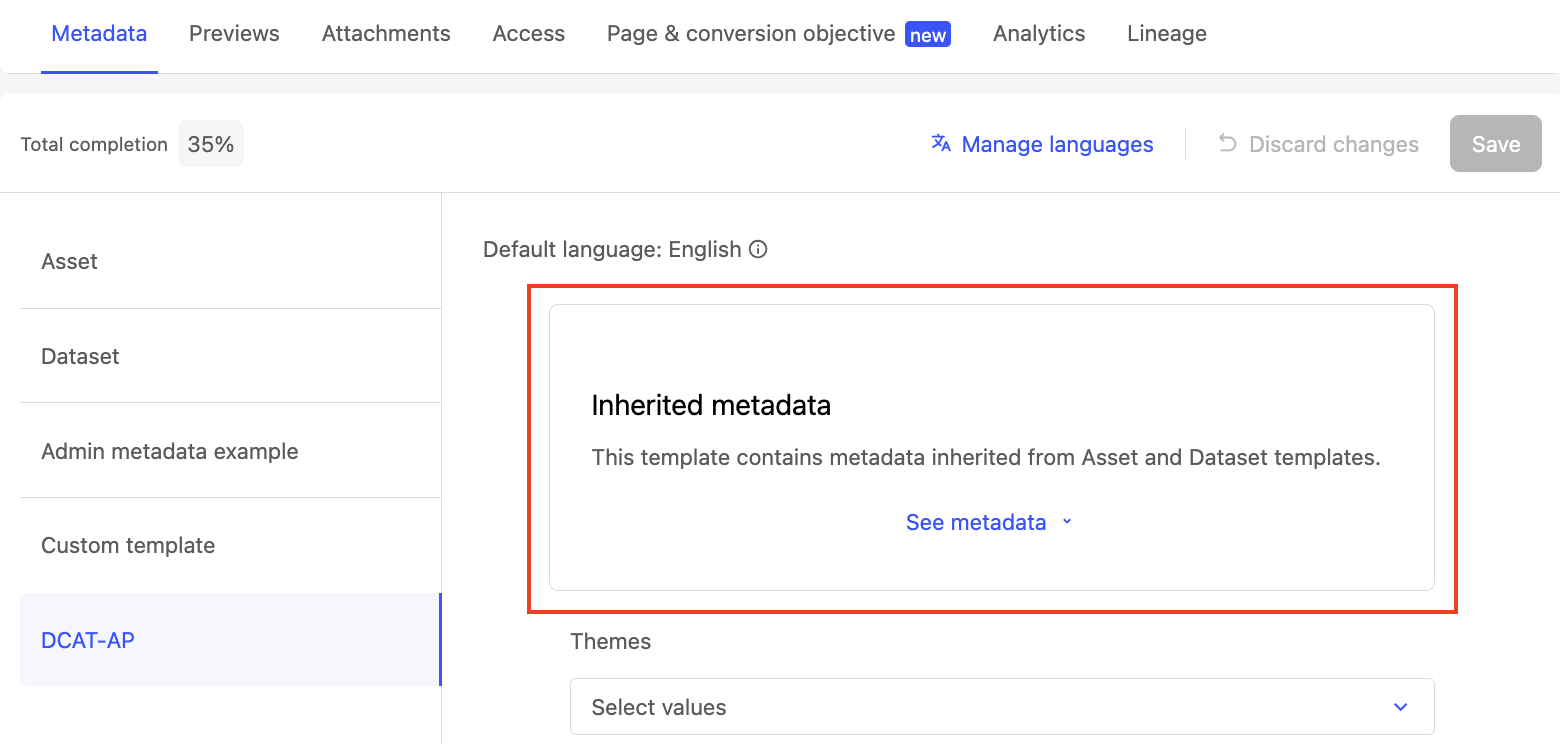
Some metadata from the Asset and Dataset templates is also found in other templates. To make filling out metadata easier and less redundant, and to improve the search performance for those metadata, those other templates will "inherit" the relevant values from the Asset and Dataset templates.
In the image above, you can see that the DCAT-AP template includes inherited metadata, and they are indicated in a separate box.
We encourage you to always fill out out the Asset and Dataset metadata templates. But note that if you have not done so, to fill out all of the metadata for a template with inherited metadata you must complete the inherited fields within the Asset or Dataset template itself.
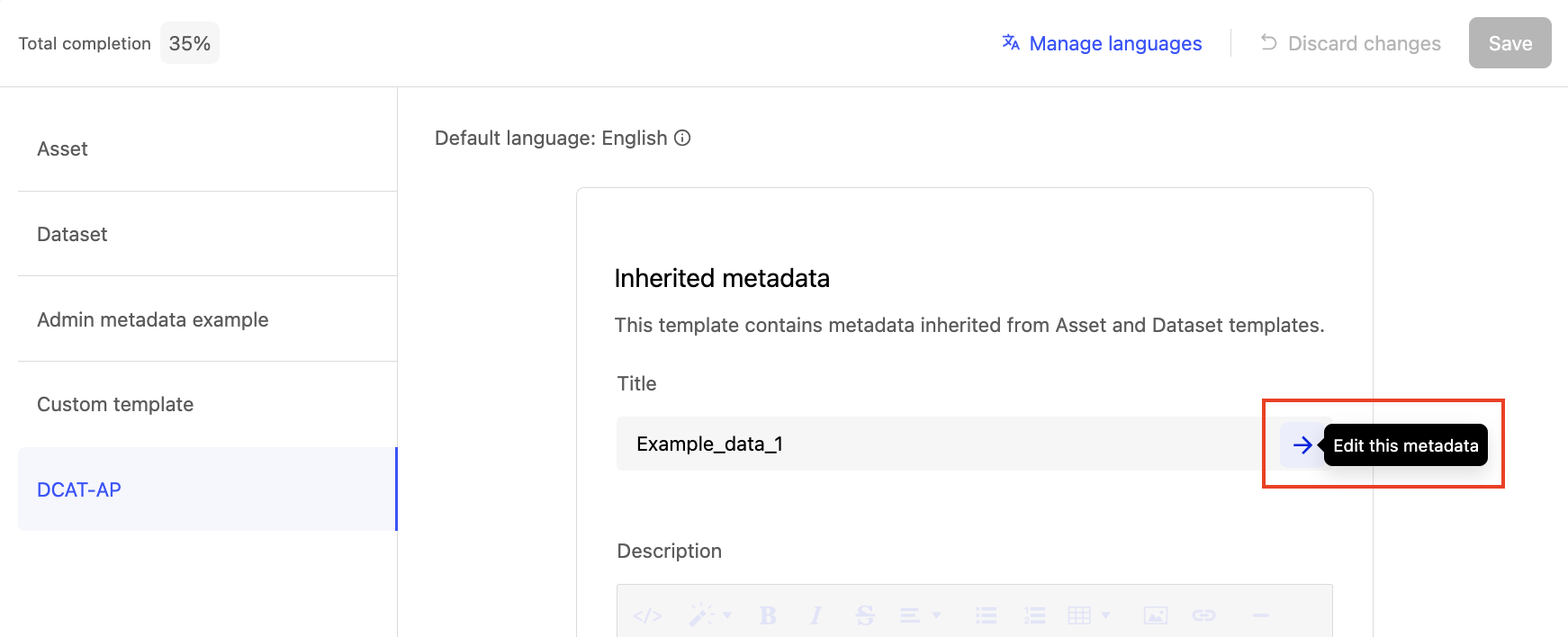
To make this easier, if you're within a template with inherited metadata and wish to fill out or modify one of those pieces of metadata, you can always click on the arrow to its right.
This will take you back to the Asset or Dataset template, where you can modify that metadata. Don’t forget to Save your changes, then click Publish to make them visible in the portal.
Creating and modifying a custom template
For instructions on how to create a custom template, or how to modify one, see this page.
We strongly encourage you to read the page linked above before editing your templates, as some necessary and permanent consequences may not be immediately obvious.