
Creating and editing metadata templates
You must be an administrator to configure metadata templates.
Huwise provides a set of default metadata, such as the title, description, themes, keywords, language, license, etc. Other optional predefined templates are also available, for example for interoperability purposes (DCAT, INSPIRE, etc.).
However, it's also possible to fill out additional, customized metadata templates to be used in your datasets.
Creating a new, custom template
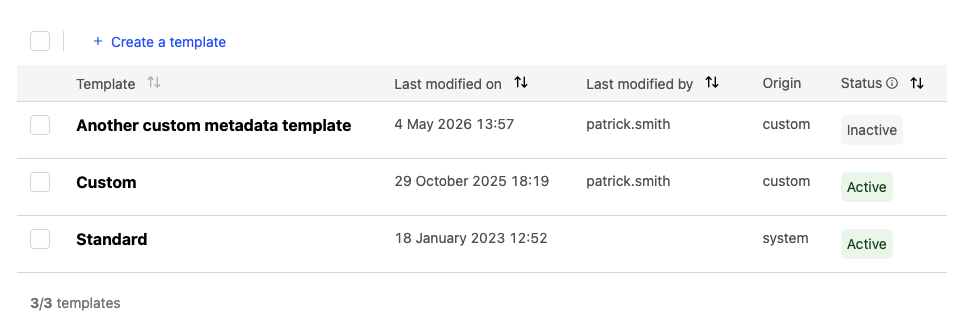
Go to the back office, under Catalog > Metadata templates. On both the Basic and Admin tabs, you can create a new template by clicking on + Create a template.
Naming the template
The first thing to do is fill out the "Template name" field.
This will automatically fill out the "template identifier," though you can manually modify the identifier.
The template identifier is the template's unique identifier, and for example is what you use in the API to refer to the template. Note that once you have created the template, you can no longer modify its identifier.
Activating and deactivating templates
To activate or deactivate new or existing templates, you can choose to do so under the "Activation" section when editing a template, or else from the templates list click on that template's three-dot icon on the far right, and select the appropriate option.
When a template is activated, it is available to be filled out on your datasets' Metadata tab. See below for more details about deactivating templates.
Creating metadata fields in your new template
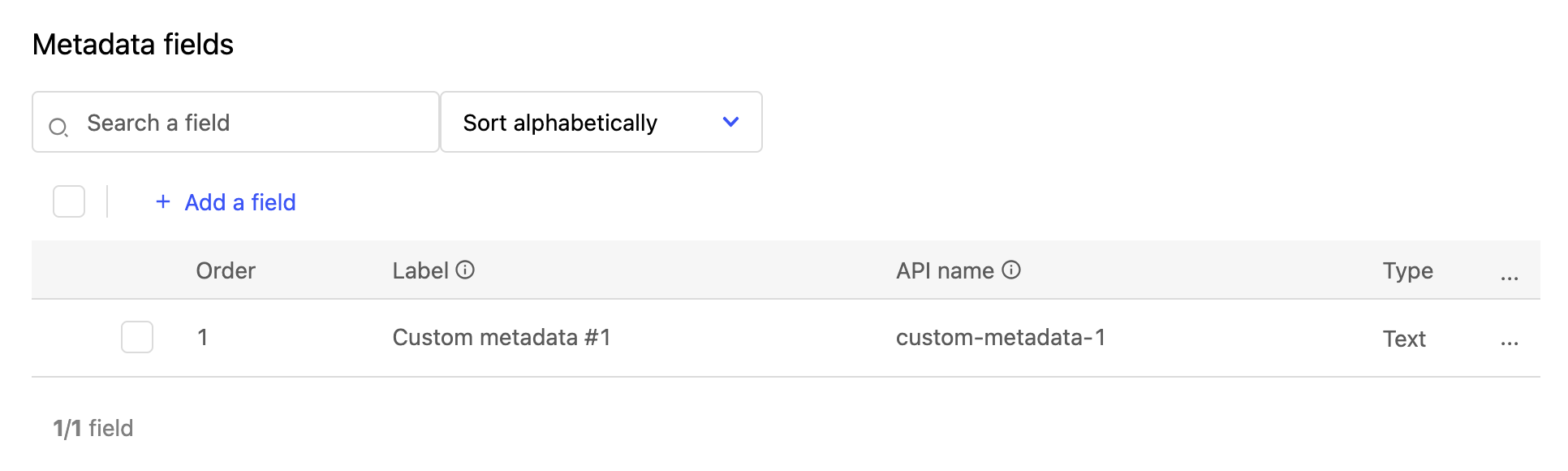
To create new metadata fields in your custom template, click on + Add a field under "Metadata fields." This opens an interface to guide you through the process, where you'll fill out the field's information, type and values, and rules.
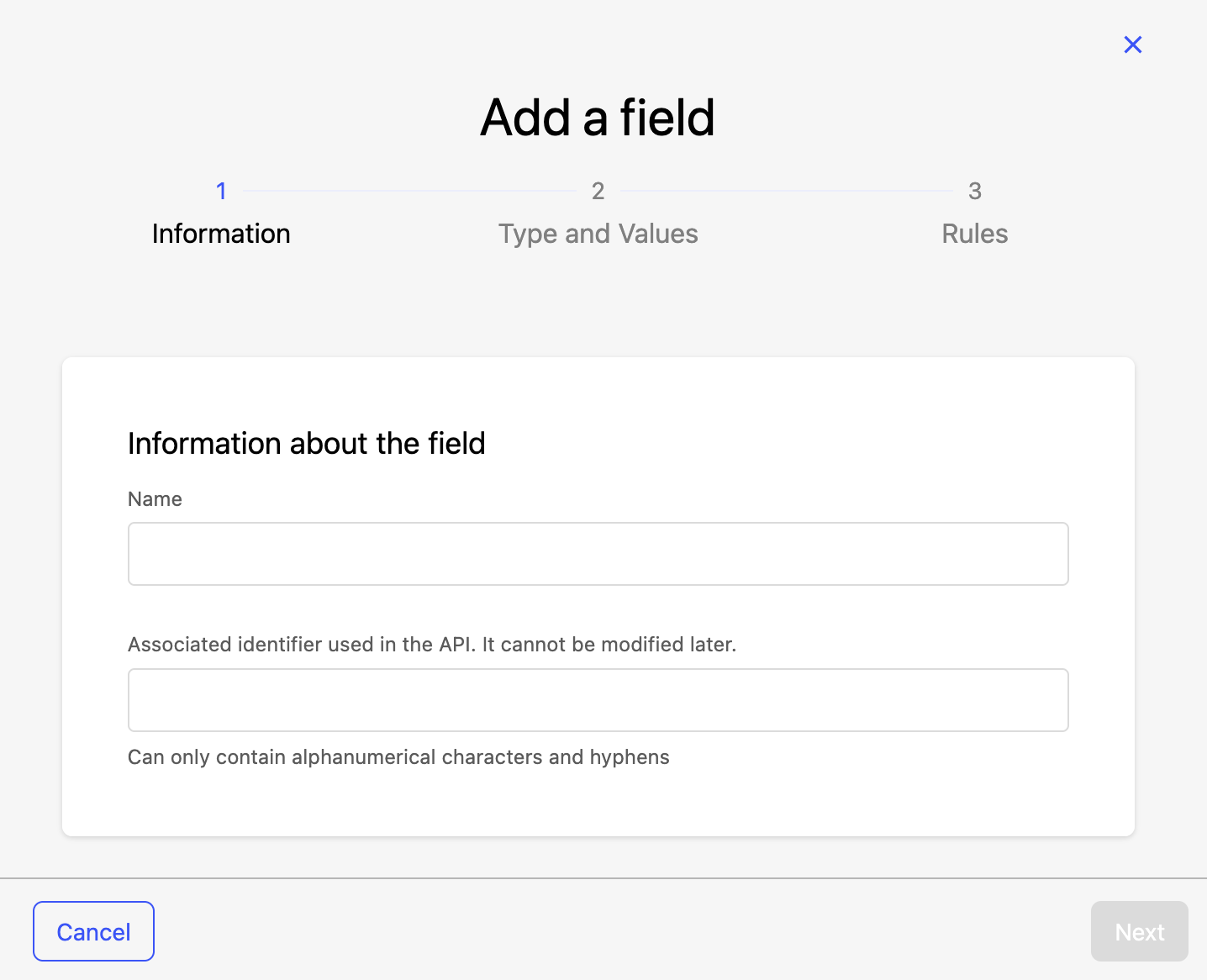
1. Information
First fill out the "Name" of the field, then click Next.
Like for the template itself, the identifier is created automatically, but can be modified. Like the template identifier, once you have finished creating the field, the field identifier can no longer be modified.
2. Type and values
From the drop-down menu, specify the type of field you wish to create.
Note that once you have defined the type, it can no longer be modified.
The table below defines the 11 available field types:
Type | Description |
Text | This is a single-entry text meant for short entries. If you think you need more space, use the "Long text" field type.
|
Single-Select | One value can be chosen from a provided list. |
Multi-Select | More than one value can be chosen from a provided list. |
Free List | Allows users to enter any one value.
|
Date | Where the contributor will be asked to provide a date. The date format displayed in your workspace is MM/DD/YYYY, but is available in the API with the format YYYY-MM-DD. Dates are limited to 0 to 9999.
|
Date & Time | Where the contributor will be asked to provide a date and a time of day. The date format displayed in your workspace is MM/DD/YYYY 00:00:00, but is available in the API with the format YYYY-MM-DDTHH:MM:SS+00:00, or year-month-day-THour:Minute:Seconds+Timezone. Dates are limited to 0 to 9999.
|
Boolean | This creates a true or false toggle switch. If used in your filters, it will show up under the name you give it, selectable for all datasets for which it's true. |
Integer | Accepts numerical values. These can be positive or negative, but must be whole numbers. |
Decimal | Like the "Integer" field type, only decimal values are accepted. |
Long text with HTML | This field type is meant for longer entries where you want users to have access to HTML. |
Long text | This is meant for longer text entries. |
Enabling translation
Under "Translate values" you can activate the option to Enable translations. This allows you to translate a metadata field's content. Translation is not activated by default, and must be activated on a field-by-field basis.
Note that once a template is created or saved, translations can no longer be turned on or off for the template's existing fields.
Also, note the exception that some Standard fields are always translatable.
Filling out translations
To fill out translations, go to the Metadata tab and click on the Manage languages button at the top right. This opens an interface where you can fill out the translations for each relevant field.
Each template in which there are translatable values appear as their own tab. Select the appropriate language from those activated on your portal with the dropdown menu at the top under "Translation languages."
The "Title," "Description," and "Keywords" fields are translated from the asset template.
To translate the "Themes" and "Categories," in the back office go to Catalog > Asset categories & themes.
Licence translations are handled in the back office in Portal > Legals. There, go to the "Licence" section at the bottom of the page.
If you need to translate existing metadata fields that do not have translations enabled, you must create new metadata fields. If possible, you can use the API to retrieve the metadata values then update the corresponding fields on the new metadata fields. See the Automation API documentation for more information.
Autocomplete, Suggested values
When creating a new field, you can enable autocomplete. When users begin typing a value into the field, they will see suggestions based on values other users have entered for this field in your workspace.
You can also manually provide suggested values.
3. Rules
Under "Help text" is where you provide a description or information to help users understand the field.
Under "Level of requirement," once you've defined the field's type and value, you have the option of marking the field as optional, recommended, or mandatory.
You have the option to include any field into a filter for your catalog and in the Explore API. When editing that field, go to the Rules tab and activate the toggle under "Catalog filter." Once enabled, go to Catalog > Settings and edit the "Catalog page." There, under "Filters," you can now select the field you enabled when adding a new filter.
Don't forget to save!
Don't forget to click Save in the upper-right corner once you're done creating of modifying your template.
Modifying an existing template or field
We recommend reading through this entire section before attempting to edit any existing template or field. The impact of the change you wish to make may not be immediately obvious.
Naturally, if you need to modify a template (or individual field or value) that has not yet begun to be used, there is no issue: Delete the offending template (or field or value) and create its replacement.
It's when a field or value has already begun to be used, however, that there can be unexpected consequences to modifying them.
What happens if I delete a template?
Templates can be deleted by clicking their trashcan icon in the list of templates, or else the three-dot menu to the upper-right inside the template itself.
If you delete a template or field once they have begun to be used, you will permanently lose their related metadata.
We recommend deactivating the template, in which case that metadata will no longer be visible, but the values will not be lost.
Can I modify an existing field?
The table below summarizes what can and cannot be modified within a field. See further down for more information.
Tab | What you can change | What you cannot change |
Information | Name | Identifier |
Type & Values | Values
Text & List
| Once the template has been saved: Field type Values |
Rules | Help text Requirement level Catalog filter setting |
What happens if I delete a metadata value?
If you delete a value from a text or list field (keeping in mind that these values are optional):
The metadata values themselves will remain as is in the portal and back office. Simply, that option will no longer be proposed for future selections.
If you delete a value from a single-select field (remember, at least one value is required when you create this kind of field):
In the back office, the previous metadata value will no longer be visible, but will simply be marked "N/A."
In the portal, the previous metadata value will remain. If the user edits the value and republishes the dataset, the value will be updated.
If you delete a value from a multi-select field (remember, at least one value is required when you create this kind of field):
The previous metadata value will no longer be visible in the back office. The field will look as if no selection was ever made.
In the portal, the previous metadata value will remain. If or when the user edits the value and republishes the dataset, at that point the value would be updated.
How about if I just deactivate a template?
The template remains in your list of templates, marked as inactive.
In the back office, that template is no longer proposed in your datasets' Metadata tab.
In the portal, as well as within the Automation API and Search API, that metadata will not be visible.
However, note that the metadata has not been deleted. Assuming no other change, if you reactivate the template, you will once again be able to see that metadata.