
Harvesting data from remote services
Harvesters allow administrators to easily create and update a large number of data assets by importing them from an external source such as a CSW catalog or an ArcGIS service, among many others.
The two main uses of harvesters are:
Bootstrap your portal with data assets from an existing portal (another Huwise portal, data.gouv, etc.)
Import and synchronize data assets with an external service (an FTP server, a data catalog such as Atlan or Collibra, etc.)
The harvester will create data assets and update their metadata and resources.
It will then allow them to be published in bulk (by default, a harvester creates assets but does not publish them, which allows the user to review the created assets before publishing them).
It will also be possible to keep the assets synchronized with the remote service via a scheduler.

Available remote services
Unless otherwise specified, all harvesters use HTTPS by default but support HTTP if specified in the provided URL. The FTP harvester uses FTPS (explicit mode on port 21) by default but supports FTP if specified in the provided URL or if the remote server does not support FTPS.
Data catalogs (Atlan, Precisely, Collibra)
Data platforms (Snowflake, Databricks)
Open data portals (ArcGIS Hub portals, CKAN, datagouv, Huwise, Socrata, Junar, Quandl)
Geospatial services (WFS, CSW, ArcGIS)
Analytics & BI (Power BI)
File & protocol connectors (FTP, FTP with CSV, data.json)
Creating a harvester
To get started with harvesters, click on the harvesters menu in your back office and then on Add harvester. You will be asked to choose the type of service you want to harvest, and a name for your harvester.
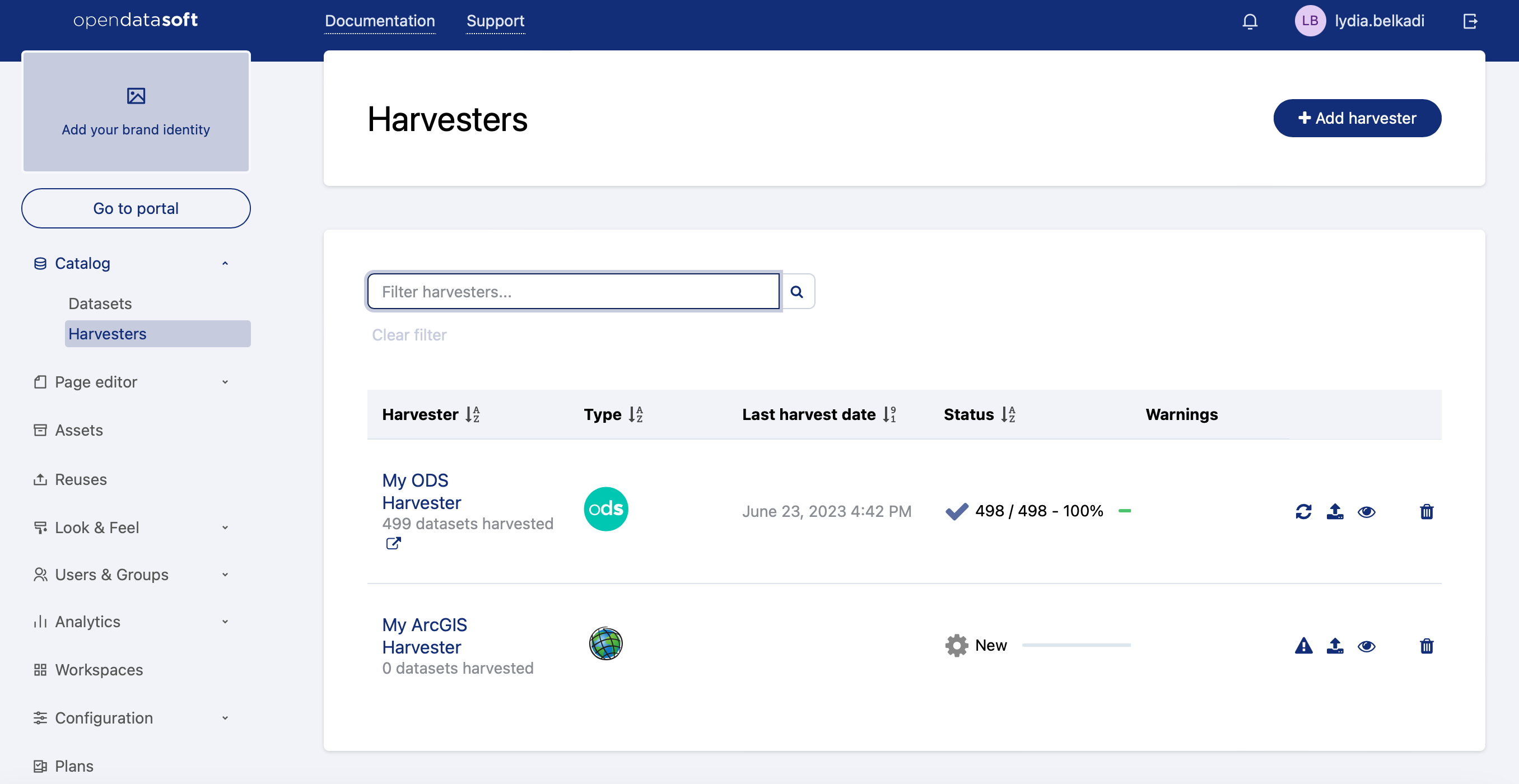
When you are done, click on Create harvester. You will be redirected to the configuration form of the harvester. As it depends on the harvester type, please refer to each harvester page below for detailed instructions.
Some options are available for every harvester type, such as:
Update on deletion: If the source assets are deleted on the harvested portal, delete them on this Huwise portal too. Otherwise, you may have assets that are not available on the external service anymore (e.g: if they are deleted from the external service).
Download resources: Download resources instead of attaching them via URL. This option allows you to detach your assets from the remote portal by permanently copying all required data on the Huwise platform. Otherwise, your assets will remain linked to the external service and will access the remote assets through their URL each time they are published.
Restrict visibility: Make the visibility of harvested assets restricted. Otherwise, they will have the default visibility of your portal.
Default metadata, inspire metadata, DCAT metadata: Allow you to override some metadata in every harvested asset. Useful if you want to force the theme or publisher instead of using the one used on the external service.
Once you are done configuring the harvester, you can click on the Preview button to test run it on a few assets. If you see some titles and descriptions and they look correct, you are all set. Otherwise, please double check your configuration.
Running a harvester
The harvesting process can be quite long on external services with many assets or with big ones. That's why it's split into two phases:
First, the harvester will connect to the remote service and discover all the data assets it contains. It will then create an unpublished asset for each remote asset it finds. These assets will contain all available metadata and resources (as URLs or as files depending on the download resources option). This happens when you click on the Start harvester button.
Next, it will process and publish all the harvested assets. This step can take a while. This happens when you click on the Publish button.
Editing harvested assets
Before publishing them, you can change the metadata of the harvested assets by overriding the initial metadata value. This override will be kept even if you restart your harvester.
Deleting a harvester
When you delete a harvester by clicking the Delete harvester button, you can choose between keeping the harvested assets (they will be kept as regular assets in your catalog) or by deleting them with the harvester.
If you choose to keep them, please keep in mind that you will have to handle them one by one to unpublish or delete them afterward and that they will be duplicated if you recreate another harvester on the same external service.
Scheduling
From the configuration page of a harvester, it is possible to make it run periodically. To do this, scroll to the bottom of the page and click on Set recurring runs. You can run the harvester every day or choose the days of the week or the days of the month it will run on. However, you always have to choose the time of day when it will run because it can not run more than once a day.
The periodic run will only trigger if the harvester has been run at least once.
At the end of a scheduled run, all the harvester's already published assets will be republished, but unpublished assets or new assets will not be automatically published.
