
Display Power BI dashboards and reports in your Huwise portal
Huwise’s mission is to centralize and democratize access to every data asset in your organization. With the Power BI connector (a harvester), you can surface live Power BI dashboards and reports directly in your marketplace—without duplicating governance or permissions.
This feature is not enabled by default, and it's only available with the data marketplace experience. If you wish to enable it on your workspace, contact your Customer Success Manager.
Note: The connector does not harvest Power BI datasets ; no customer use‑case has required it so far.
Key benefits
Discoverable: Power BI content is searchable through your portal.
Full interaction: Users interact with the visuals just as they would within Power BI (filters, panes, etc.).
Context enrichment: You can add Huwise metadata (descriptions, tags, themes) to help your end users.
Governance preserved: Permissions set in Power BI are respected. Users without access will see a Request access button in the portal.
Power BI governance is preserved
Scenario | In Power BI | In Huwise |
User has access to the report | ✅ Access | ✅ Automatic access |
User does not have access | ❌ No access | 🔘 Request access button |
How to configure the prerequisites for Microsoft (Azure/Power BI admins)
Open Azure Portal > App Registrations
Click New registration (no special options)
In the newly created app, navigate to Certificates & Secrets > New client secret
Note the Tenant ID, Client ID, and Client Secret
Share the relevant Power BI workspaces with this application (Service Principal) or add the Huwise application as a user on every workspace that Huwise should access
How to configure the connector in Huwise
In your back office, go to Catalog > Harvesters
Click Add harvester and select the "Power BI" harvester and name the harvester (e.g. "Power BI – Finance")
Fill in "Tenant", "Client ID" and "Client Secret" with the values you noted in the instructions above
Toggle the connector mode under "Use Admin API"
There are two modes:Mode
Toggle
Scope
Admin
Toggle on
The Service Principal has the Power BI Admin API and therefore sees all workspaces in the tenant.
Non‑admin
Toggle off
The application can access only workspaces where it has been explicitly added as a user.
Note that in Non‑admin mode, the API does not return modification dates for dashboards or reports. Consequently, every harvest updates the date of all harvested assets in Huwise.
In the "Advanced configuration" section, select the workspaces to harvest in the Workspaces dropdown. It lists the workspaces the application can see, which depends on the mode you chose.
Then, under "Asset Category Mapping", choose a category for each Power BI asset type you want to harvest. Click Add, select the type in the "Remote Asset Type" column (Reports or Dashboards) and its category in the "Asset Category" column. Only the types you add here are harvested: if you don't add Dashboards, for example, no dashboards are imported.
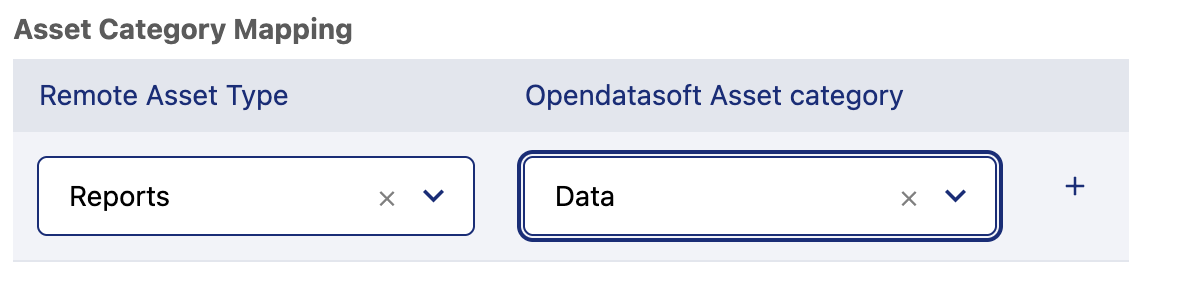
Reports: For example, "Reports" could be assigned to "Data" (a default category) or to custom categories called "Report" or "Deep analysis"Dashboards: For example, these might be assigned to "Visualizations" or could be assigned to a custom category called "Dashboard"
Finally, check the options and metadata configuration of your choice, as with any harvester
Once the connector is configured, perform a preview in order to verify the result.
Then, if necessary, schedule a recurring harvest that matches how often your Power BI reports and dashboards are updated.
To finish, click Save in the upper right, then once you're ready click Publish.
Finally, if you want to delete the connector, you can always click Delete harvester at the very bottom.
How Power BI metadata is mapped to Huwise
The harvester fills in the following metadata for each report and dashboard it imports. These mappings are fixed and can't be changed, except for the category, which follows "Asset Category Mapping". The technical IDs are provided for those working with the APIs.
Reports
Power BI source | Power BI source in the API | Huwise metadata | Huwise field ID in the API |
The report's name | report.name | Title | asset.title |
The report's description | report.description | Description | asset.description |
The report's creation date | report.createdDateTime | Creation date | asset.created_at |
The report's last modification date | report.modifiedDateTime | Modification date | asset.updated_at |
The report's URL, with your tenant ID added | report.webUrl + ctid | Content link | asset.content_link |
Who created the report | report.createdBy | — | asset.created_by |
The category chosen for Reports | Harvester parameter | Category | asset.category |
Dashboards
Power BI source | Power BI source in the API | Huwise metadata | Huwise field ID in the API |
The dashboard's name | dashboard.displayName | Title | asset.title |
The dashboard's description | dashboard.description | Description | asset.description |
The dashboard's URL | dashboard.webUrl | Content link | asset.content_link |
The category chosen for Dashboards | Harvester parameter | Category | asset.category |