
Single sign-on with SAML 2.0
The availability of this feature depends on your plan. Contact your Huwise account manager or refer to your contract to confirm access.
Huwise allows access to your workspace to be managed through a single sign-on (SSO) authentication solution, and currently supports the OpenID Connect and SAML 2.0 protocols.
Note that only one SAML provider can be enabled at a time on a given workspace. If you need multiple SSO providers active simultaneously, consider using OpenID Connect (OIDC) providers instead.
Before you begin
To set up a SAML provider, you'll need the following from your identity provider's administrator:
SAML metadata XML: An XML document that describes your identity provider's configuration (entity ID, SSO service URLs, signing certificates). Most identity providers let you download this file or copy it from a settings page.
Attribute names: The names of the SAML assertion attributes that carry the user's first name, last name, email address, and unique identifier. These names vary by provider.
You'll also need to share your Huwise Service Provider (SP) Entity ID and SSO URLs with your identity provider's administrator so they can register Huwise as a trusted service provider. These values are displayed in the Huwise wizard and in the configuration page once you've created the provider.
Setting up a SAML provider
In the back office, under Access > SSO, click on Add a provider in the upper right-hand corner, then click on the SAML button.
Make sure your provider's page is open during this configuration, as you'll need to both retrieve information from it and add information to it.
You have five steps to complete, clicking Next as you complete each step:
Step 1: Provider type
Choose SAML in this case.
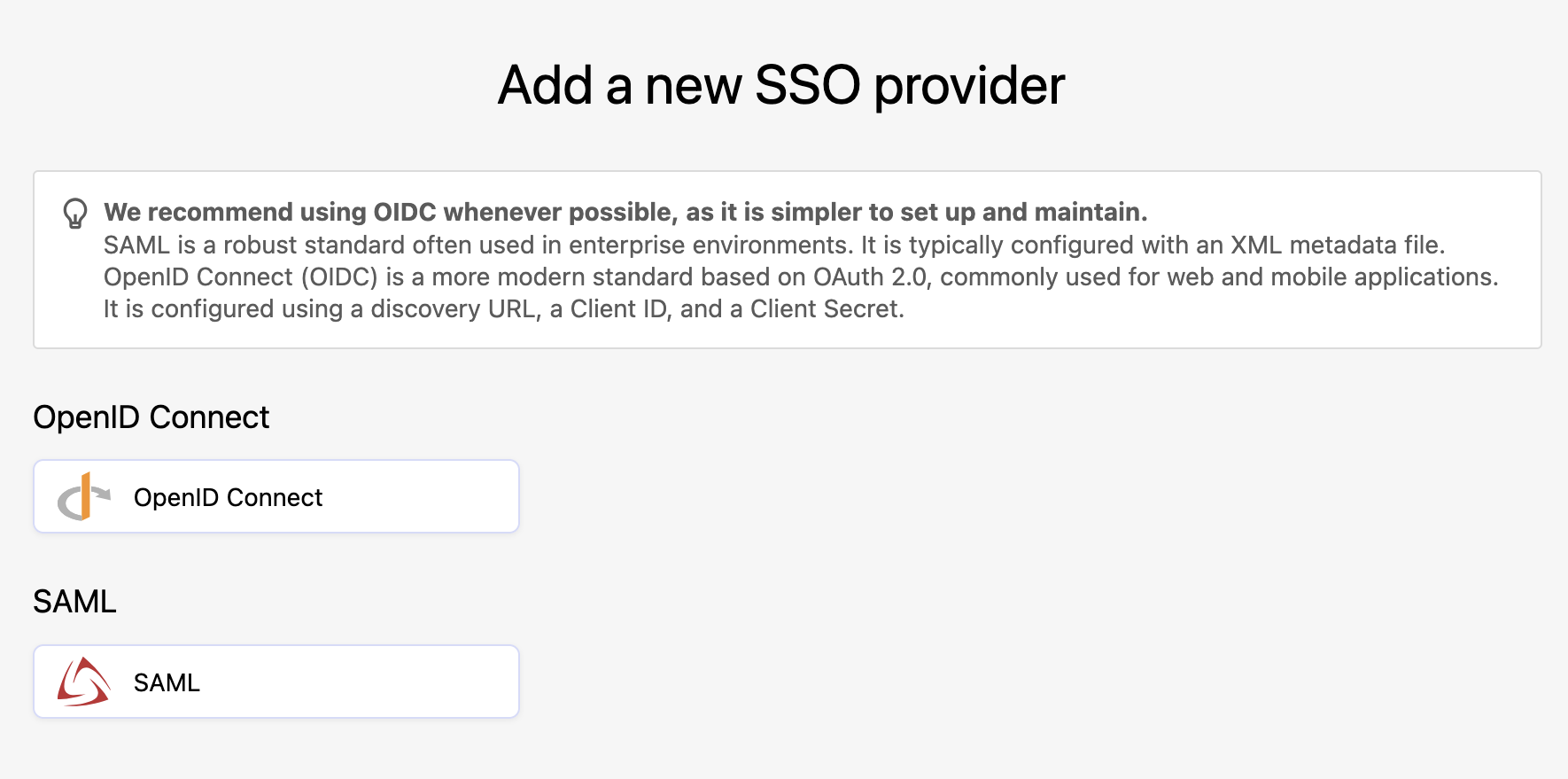
Step 2: Name
Enter in the name you wish to use for this provider configuration. The name must be unique across your workspace. Huwise checks availability in real time as you type. This is the name you'll see in your list of providers.
Step 3: Service
You need to copy the information from here — SAML Assertion URL, Audience URI, Single Logout Service URL — and past it into your identity provider's configuration interface.
If your provider supports metadata-based configuration, you can download Huwise's SSO metadata file here.
Step 4: Identity
Here you can drag-and-drop or browse your computer for your identity provider's XML file.
Step 5: Mapping
Here, define the attributes your identity provider uses to define your users: the unique identifier, first name, last name, and email.
Unique identifier attribute (NameID) | This field is should only be filled out if the value in the NameID field sent by your identity provider is also sent as a regular SAML attribute — if, for example, the NameID contains the user's email address, and a "mail" attribute is also sent with the email address. | Usually this is the user's email address, ID number, or unique user name. |
First name | Map this to the SAML attribute containing the user's first name. |
|
Last name | Map this to the SAML attribute containing the user's last name. |
|
Map this to the SAML attribute containing the user's email address. |
|
Map the attributes sent by the identity provider to their corresponding fields — username, last name, first name, and email address. For example, if the first name is transmitted as GivenName, enter "GivenName" in the First name field.
If any elements are not transmitted, leave those fields blank. The platform will generate them based on other available attributes.
Click Create provider. Your SAML provider is now created and visible in the list but disabled by default. You are then redirected to the identity provider edit page, where you can complete the configuration by adjusting advanced settings, configuring group mappings if required, and activating the provider. (see below)
Editing a SAML configuration
When editing a configuration, you have access to a Configuration tab, an Access rules tab and a Group mapping tab.
Configuration tab
The Configuration tab gives you access to all of the information provided when the configuration was first set up, such as the name you gave the configuration and information you used to configure your identity provider, or the XML file you used from your IdP for the configuration.
Advanced settings
Under "Scope and attributes management," you will find options to manage your configuration's scope and attributes:
Unique identifier attribute (NameID): information defined in step 5.
First name attribute: information defined in step 5.
Last name attribute: information defined in step 5.
Email attribute: information defined in step 5.
Monitoring ID attribute is the attribute whose value will appear in monitoring logs for easier identification of the SSO users.
Security & behavior
Under "Security & behavior," you have four toggles, all turned off by default:
Disable automatic local provisioning: If you want to disable local user creation, making sure only existing users can connect to the platform through SAML, toggle "Disable local user provisioning."
Allow the SAML identity provider to create a new identifier: By default, only users with an email_verified claim set to true in their ID token will be allowed to log in.
Optional custom EntityID for the SAML service provider: This setting allows you to override the default EntityID of this application. Only change this if your identity provider requires a specific, custom value.
Optional NameID format to be sent in authentication requests: This setting allows you to specify the NameID format that your application will request from the identity provider. Leave the default value unless you have a specific requirement.
Log in & profile
Under "Log in & profile," if a URL is provided, users logging in will see a link on their profile page to manage their account at the identity provider. You can provide language-specific labels for this link. Additionally, you can customize the SSO login button on your workspace's login page, which is helpful if you have multiple identity providers.
URL for SAML user account configuration: A URL pointing to the user's account page on the identity provider. If set, users can navigate to their identity provider's account settings from the profile account page.
Login button label: Set a custom label for the SSO button (e.g., "Log in with Azure AD"). Different labels can be provided for each configured language.
Login icon: Upload a custom icon (e.g., your organization's logo) to display next to the login button label.
Access rules tab
For information on how to define conditional access rules to control who can log in, see here.
Group mapping tab
For information on how to map your SSO groups to your Huwise groups, see here.