
Precisely harvester
The Precisely harvester is not available by default. Contact Huwise to activate it on your workspace.
If Precisely is your data catalog — where your organization governs, validates, and certifies its data assets — Huwise is your data marketplace — where data consumers discover and use what they need.
The Precisely harvester allows you to bring your best, certified data products from your Precisely catalog into your Huwise data marketplace, where a broader audience can discover, explore, and use them.
Customizable configuration
You don't necessarily want every asset in your Precisely catalog to get wider exposure, so the harvester lets you define exactly which data products qualify.
During each harvesting cycle, the harvester checks for assets that pass your criteria and imports them into your marketplace, where they can be published and made available to users.
The assets linked to a Precisely data product — the underlying tables, reports, or other resources it references — are also imported, either as datasets or as external assets, depending on their type in Precisely.
Note that if your workspace changes significantly after the initial setup, you may need to revisit the configuration.
How to configure the harvester
To create and configure your Precisely harvester, in your back office go to Catalog > Harvesters.
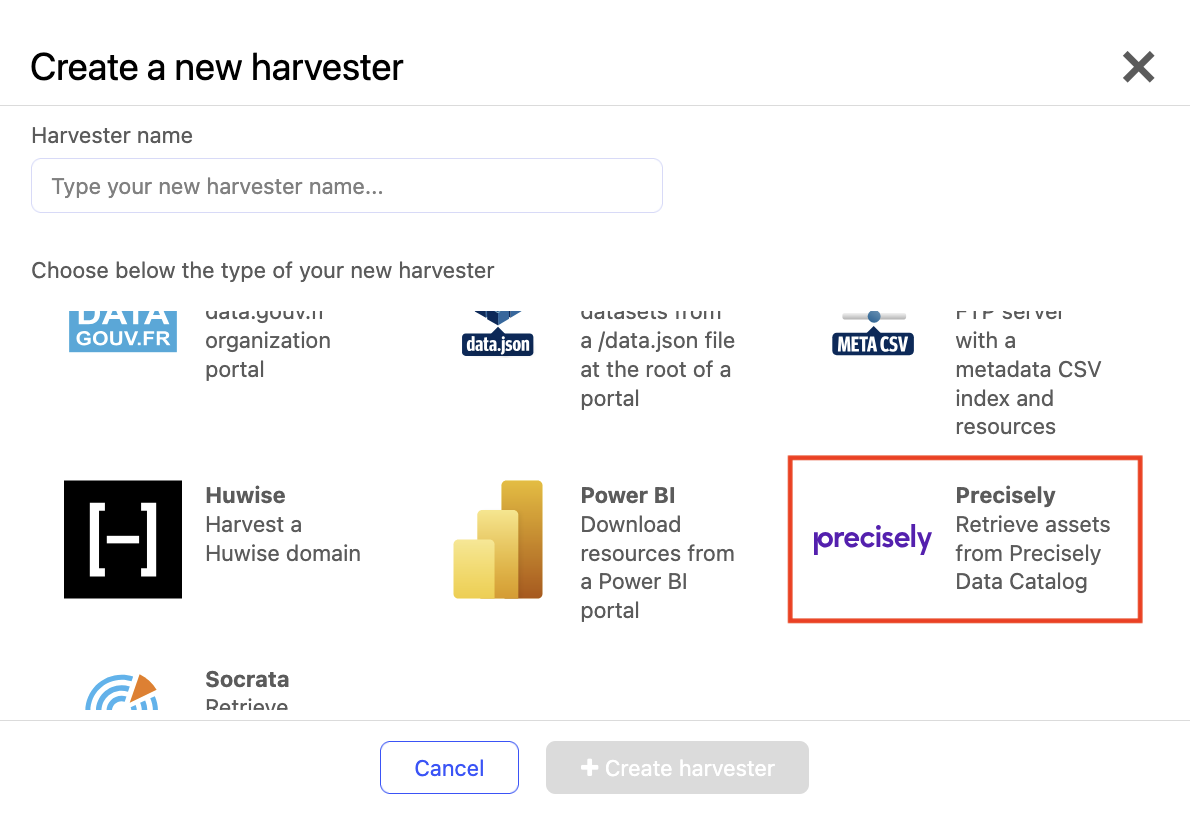
Click on the Add harvester button and select Precisely.
Provide a name for your harvester, and click on Create harvester.
Configure filters
Filters define which data products are eligible for import. The harvester reads your Precisely workspace and surfaces the options it finds there, so the choices you see reflect your organization's actual setup.
Select the data product type
Your Precisely workspace may contain several types of business assets. Start by telling the harvester which asset type corresponds to data products.
In your back office, click on the Precisely harvester to open its configuration.
Under Filters, open the Data product type dropdown.
Select the asset type that represents data products in your workspace. The harvester populates this list by scanning your workspace.
Define your import filters
With a data product type selected, you can set conditions that a data product must meet to be imported. This is how you make sure that only validated or certified assets reach the marketplace.
The harvester scans your Precisely workspace and surfaces any list-type or boolean fields associated with your data product type. Each one becomes a configurable filter.
For each filter, select the value or values a data product must have to qualify.
Data products that don't match all your conditions are skipped during the harvesting cycle.
Note that the available filters depend on the fields defined in your Precisely workspace. If a field you expected isn't listed, check that it exists and is associated with the data product type you selected.
Choose related assets to import
Data products in Precisely are typically linked to other assets — tables, reports, or other resources. You can choose which of those linked assets come into the marketplace alongside each data product.
The harvester lists the relationship types defined for your data product type, where the data product is the starting point of the relationship.
Select the relationship types whose target assets you want to import. Focus on assets that contain data your users will actually want to explore.
Configure mappings
With your filters set, you define how imported assets and their metadata appear in Huwise.
Map asset categories
Each asset type you import needs to be assigned a category in Huwise. This determines how it's presented in the marketplace. For each Precisely asset type in your selection, choose the corresponding Huwise category.
The table below shows a few typical pairings — yours may differ.
Precisely asset type | Huwise category |
|---|---|
Data product | Data product |
Table | Data |
Report | Visualization |
Map metadata fields
Metadata from Precisely can be mapped to fields in Huwise — either standard fields or custom fields you've set up beforehand. For each Precisely field you want to carry over, select the corresponding Huwise field. Fields you don't map are not imported.
If you want to import a Precisely field that doesn't match any existing Huwise field, create the custom metadata field in Huwise first, then return here to map it. See Creating and editing metadata templates for more information.
Map scores
Precisely calculates quality and governance scores for assets, based on rules defined in the Precisely Governance section. You can surface those scores in the marketplace by mapping them to custom metadata fields in Huwise.
Create the custom metadata fields in Huwise that will receive the scores. See [Managing metadata templates] for more information.
In the harvester configuration, map each Precisely score to the corresponding field.
What gets imported
Once your harvester is configured, the harvesting cycle runs automatically. Here's what each import produces.
Related assets — An asset that Precisely identifies as a dataset type is imported as a Huwise dataset. All other asset types are imported as external assets.
Data products — Each data product is imported with a description that lists its related assets as links, so users can navigate from the data product page directly to each of its constituent assets.
Format your data product pages
A few adjustments to the default asset page layout help present imported data products clearly. On each imported data product page, we recommend that you remove the Related assets section — this duplicates the list already included in the description.
As a broader best practice, consider disabling the display of related assets in the catalog view. This keeps the catalog focused on data products rather than showing their constituent assets as separate entries.
Next steps (once your harvester is configured)
Your imported data products are ready to publish.
At this point, the harvesting cycle runs automatically: each time a data product in Precisely meets your filter criteria, it will be picked up during the next cycle, imported into the marketplace, and made available to publish.
Remember to:
Also publish a new Precisely asset's related assets, because otherwise the links to them in the original asset's description — generated when the asset is published — won't work
Always complete your assets with standard metadata, or if necessary custom metadata fields
Verify the harvesting schedule